Accurate business hours can make or break a customer’s experience with your local business. When someone searches “coffee shop near me open now” at 8 PM, wrong hours online means lost sales and frustrated customers showing up to locked doors.
This guide is for local business owners, marketing managers, and entrepreneurs who want to get their hours right across all digital platforms. You’ll learn how to set up accurate hours that actually help customers find you when you’re open.
We’ll walk through setting up your hours on Google Business Profile so you show up in local searches when customers need you most. You’ll also discover how to configure your business hours on Apple Maps to reach iPhone users looking for nearby businesses. Plus, we’ll cover optimizing social media platforms for hour display and managing special hours during holidays when your schedule changes.
Getting your hours right isn’t just about posting information – it’s about building trust with customers who rely on accurate details to plan their visits to your business.
Why Accurate Business Hours Drive Customer Success

Boost customer trust and reduce frustration
When customers see accurate business hours displayed online, they know exactly when to visit or call your business. This transparency builds trust before they even walk through your door. Nothing frustrates potential customers more than driving across town only to find closed doors when your online listing says you’re open. These negative experiences stick with people, and they often share their disappointment with friends and family.
Accurate local business hours eliminate the guesswork for your customers. They can plan their visits confidently, knowing you’ll be there when they arrive. This reliability creates positive first impressions and sets the foundation for strong customer relationships. When people trust your basic information, they’re more likely to trust your products and services too.
Improve local search rankings and visibility
Search engines like Google reward businesses that provide accurate, up-to-date information. When your hours business information matches across all platforms, search algorithms view your business as reliable and authoritative. This consistency signals to Google that your business is legitimate and actively managed, which can boost your local search rankings.
Accurate what are business hours data also helps search engines serve better results to users. When someone searches for businesses “open now” or “near me,” search engines can confidently include your business in those results if your hours are properly updated. This increased visibility in local search results directly translates to more potential customers discovering your business.
Increase foot traffic and phone inquiries
Clear, accurate business hours drive more qualified traffic to your location. When customers know your regular business hours, they’re more likely to make the trip because they’re confident you’ll be open. This reduces wasted visits and increases the likelihood of successful customer interactions.
Your hours business information also affects phone inquiries. Customers often check your hours before calling to ensure they’ll reach someone. When your what are normal business hours are clearly displayed and accurate, people feel more comfortable picking up the phone to ask questions or make appointments. This leads to more meaningful conversations and higher conversion rates.
Prevent negative reviews from incorrect information
Incorrect business hours are one of the fastest ways to earn negative reviews. Customers who arrive at closed businesses often vent their frustration online, especially if they traveled far or rearranged their schedule. These reviews specifically mention the hours discrepancy, which damages your reputation and warns other potential customers away.
Maintaining accurate local business hour information across all platforms prevents these preventable negative experiences. When customers can rely on your posted hours, they arrive when you’re open and ready to serve them. This leads to positive interactions instead of frustrated reviews, protecting your online reputation and encouraging more customers to visit.
Setting Up Your Hours on Google Business Profile
Access and verify your Google Business Profile
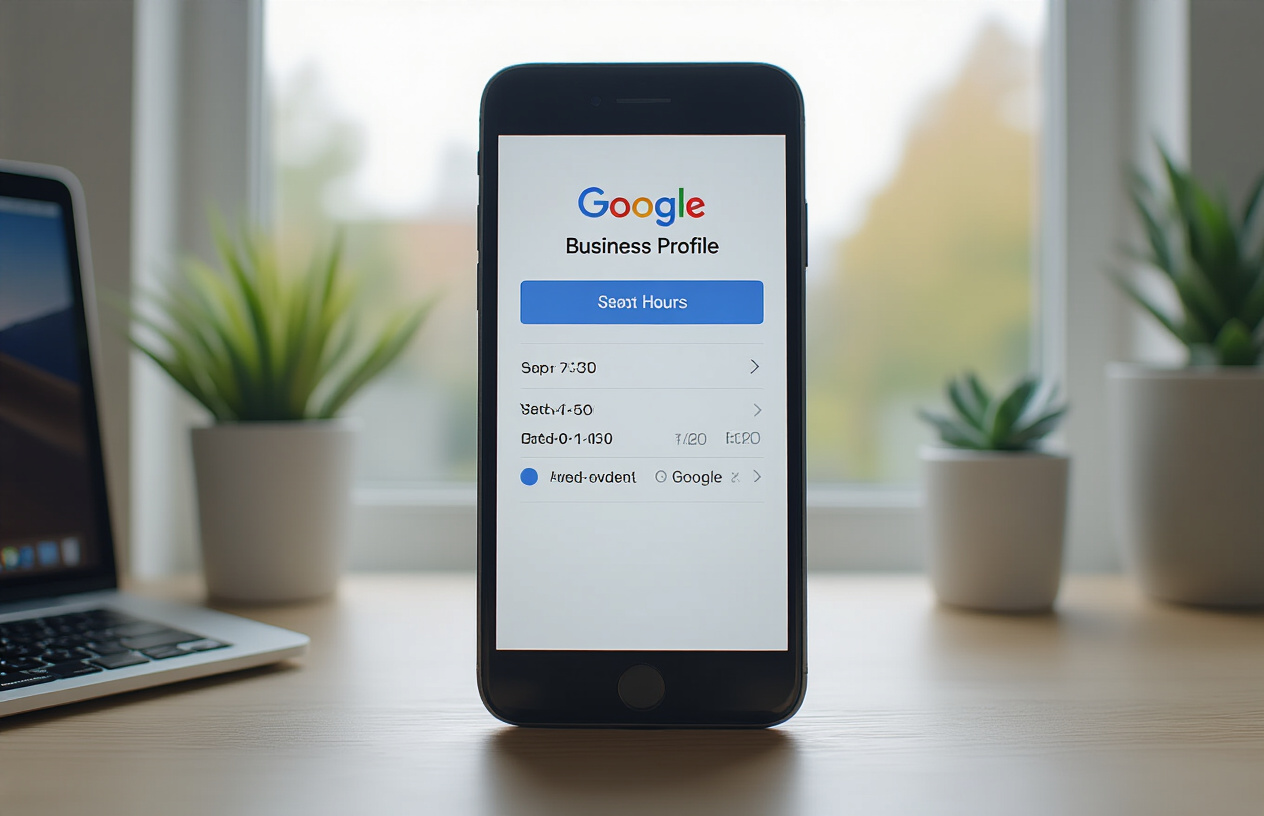
Your Google Business Profile serves as the foundation for how customers find your local business hours across Google Search and Maps. Start by visiting business.google.com and signing in with your Google account. If you haven’t claimed your business yet, search for it using your business name and address. Google often creates listings automatically, so yours might already exist.
Once you locate your business, click “Manage now” to begin the verification process. Google typically requires verification through postcard, phone, email, or instant verification if you’re already verified on Google Search Console. The postcard method remains most common – Google mails a verification code to your business address within 5-14 days.
After verification, you’ll gain full control over your business information. This verified status builds customer trust and ensures your hours business information appears prominently in search results. Unverified listings have limited editing capabilities and may not display consistently across Google’s platforms.
Enter regular operating hours for each day
Navigate to the “Info” tab in your Google Business Profile dashboard. Look for the “Hours” section and click the pencil icon to edit. You’ll see a weekly schedule where you can set different business hours for each day.
Click on each day to specify opening and closing times. Use the dropdown menus to select hours in 15-minute increments. For businesses with split schedules (like restaurants that close between lunch and dinner), add multiple time ranges by clicking “Add hours” for that specific day.
Consider these best practices when setting your regular business hours:
- Be precise with your timing – customers rely on this information
- Account for any prep time needed before officially opening
- Set consistent hours that your staff can realistically maintain
- Use the “Closed” option for days you don’t operate
Google displays these hours in local search results, so accuracy directly impacts customer experience and reduces frustration from unexpected closures.
Add special hours for holidays and events
Holiday schedules require separate management from your regular local business hours. In your Google Business Profile, scroll to the “Special hours” section within the Hours area. Click “Add special hours” to create exceptions to your normal schedule.
Select the specific date and choose from these options:
- Closed for holidays when you’re not operating
- Modified hours for shortened or extended days
- Different schedule for special events or seasonal changes
Popular holidays to consider include New Year’s Day, Independence Day, Thanksgiving, and Christmas. Many businesses also adjust hours for Black Friday, Small Business Saturday, or local events. Plan these holiday hours well in advance since customers often check business availability before making trips.
Google automatically reverts to regular hours after special dates pass. However, double-check that your profile updates correctly, especially after major holidays when customer traffic increases.
Enable temporary closures and reopening dates
Unexpected situations sometimes require temporary closures – whether for renovations, emergencies, or planned maintenance. Google Business Profile handles these scenarios through the “Mark as temporarily closed” feature.
In your profile’s Info section, look for “Add attribute” or the three-dot menu. Select “Temporarily closed” and specify your expected reopening date if known. This prevents customers from making unnecessary trips while keeping your listing active for when you reopen.
How to change business hours on Google during temporary closures:
- Mark your business as temporarily closed
- Add a brief explanation in your business description if appropriate
- Post updates on your Google Business Profile to keep customers informed
- Set calendar reminders to update your status when reopening
When you’re ready to reopen, simply remove the temporary closure marking and verify your regular hours are correct. Consider posting a welcome-back message to re-engage your customer base.
Google preserves your reviews, photos, and other profile information during temporary closures, making the transition back to normal operations seamless for both you and your customers.
Configuring Your Business Hours on Apple Maps
Claim your business listing through Apple Business Connect
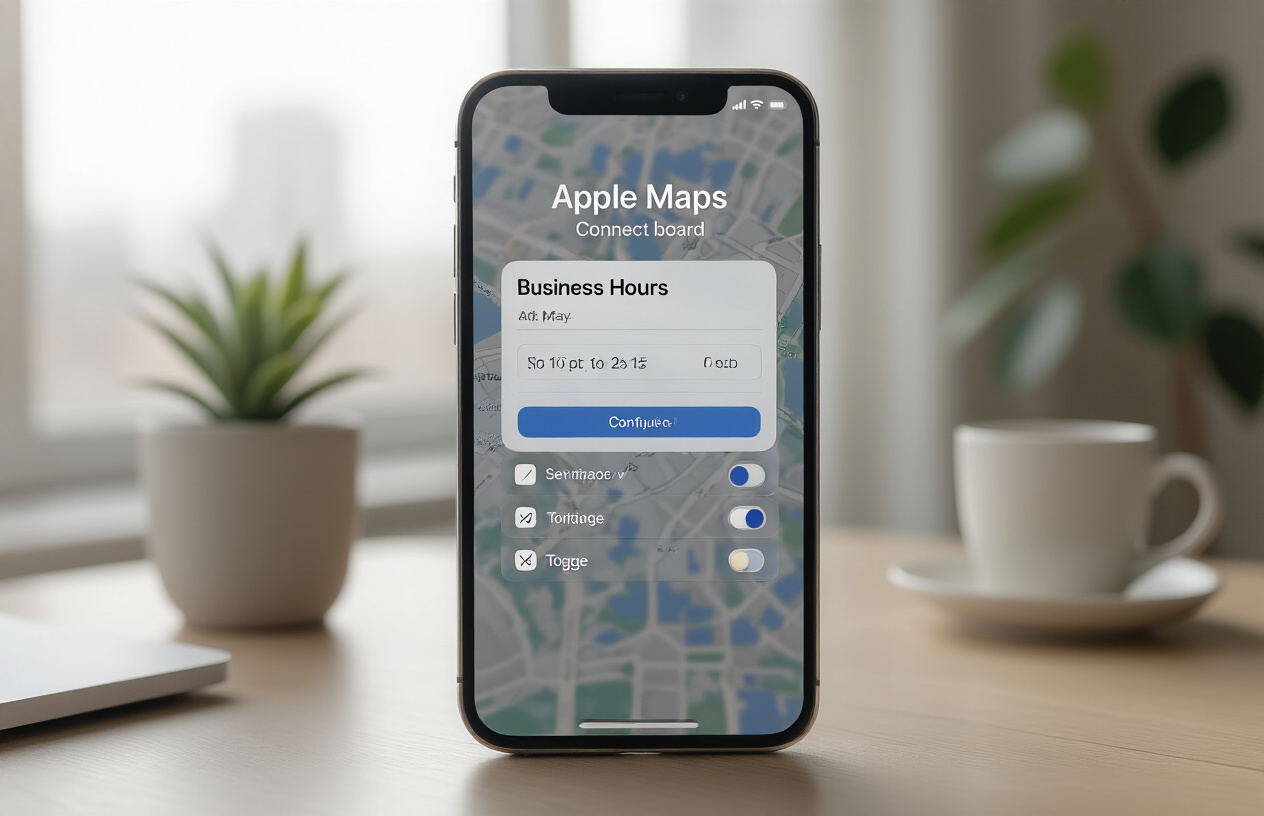
Getting your business on Apple Maps starts with Apple Business Connect, Apple’s free platform for managing your business information. Head to businessconnect.apple.com and create an account using your business email address. You’ll need to verify your business ownership through documentation like business licenses, utility bills, or official correspondence.
Apple’s verification process typically takes 3-7 business days, but it’s worth the wait. Once approved, you’ll have complete control over how your business appears to millions of iPhone and Mac users searching for local services.
The platform lets you manage everything from your business description to photos, but getting your hours right is crucial for customer satisfaction. Many potential customers rely on Apple Maps for quick hour lookups, especially when they’re already using their iPhone for navigation.
Input detailed weekday and weekend schedules
Apple Maps allows you to set specific hours for each day of the week, giving you flexibility for businesses with varying schedules. Start by selecting your business type – retail, restaurant, service provider – as this helps Apple understand your typical operating patterns.
Enter your regular business hours carefully:
- Monday through Friday: Set consistent weekday hours if applicable
- Saturday and Sunday: Configure weekend hours separately
- Closed days: Clearly mark days when you’re closed
Apple Maps supports multiple time periods per day, perfect for businesses with lunch breaks or split schedules. For example, if you close from 12-1 PM for lunch, you can set morning hours (9 AM – 12 PM) and afternoon hours (1 PM – 6 PM) as separate entries.
Double-check your timezone settings to ensure accuracy across different regions. Apple automatically adjusts displayed hours based on the searcher’s location, but your base hours need to be correct.
Set seasonal hour variations
Many local businesses operate different hours during peak seasons, holidays, or special events. Apple Business Connect handles these variations through temporary hour adjustments that automatically revert to your regular schedule.
Create seasonal schedules for:
- Summer/winter hour changes
- Holiday weeks with modified schedules
- Special event periods
- Vacation closures
Set start and end dates for each temporary schedule. Apple will automatically switch back to your regular hours when the special period ends, saving you from manually updating your listing repeatedly.
Update contact information alongside hours
While updating your business hours, take time to verify all your contact information remains current. Customers often need to call during business hours, so accurate phone numbers are essential alongside correct hour listings.
Update these key details:
- Primary phone number
- Website URL
- Physical address
- Additional contact methods
Keep your business description current too, especially if your services or specialties change seasonally. This helps customers understand what to expect when they visit during your posted business hours.
Optimizing Social Media Platforms for Hour Display

Update Facebook business page hours and contact info
Facebook remains one of the most powerful platforms for local business discovery, making accurate hour display crucial for customer engagement. Navigate to your Facebook business page and click the “About” section to access your hours settings. Facebook allows you to set different hours for each day of the week, including options for being closed on specific days.
When updating your facebook business hours closed status, make sure to specify whether you’re temporarily closed or permanently closed to avoid confusion. The platform also lets you add special notes about your operating schedule, which is particularly useful for businesses with unique arrangements like appointment-only services.
Your contact information should be updated simultaneously with your hours. This includes your phone number, address, and website URL. Facebook displays this information prominently in your business profile, making it easy for potential customers to find essential details quickly.
Configure Instagram business profile hours
Instagram business profiles offer streamlined hour management through the “Edit Profile” section. Tap “Contact Options” and then “Business Hours” to access your scheduling settings. Instagram automatically displays your hours in your profile bio area, making them immediately visible to visitors.
The platform allows you to set different hours for each day and mark days when you’re closed. Instagram also integrates with your Facebook business page, so changes made on one platform can sync with the other if you’ve connected your accounts.
Consider adding your business hours to your Instagram Stories highlights for additional visibility. Create a dedicated highlight called “Hours” or “Info” where you can permanently display your schedule, special announcements, and holiday hours.
Add hours to LinkedIn company pages
LinkedIn company pages provide professional credibility for local businesses, especially those serving other businesses. Access your company page admin panel and navigate to “Page Details” to add your operating hours. LinkedIn’s format is straightforward, allowing you to set specific hours for each day of the week.
While LinkedIn may seem less crucial for consumer-facing businesses, it’s particularly important for B2B companies, professional services, and businesses that work with corporate clients. Your hours of business information helps potential clients and partners know when they can reach you for collaboration or services.
LinkedIn also allows you to add additional contact information and location details that complement your hour display, creating a comprehensive business profile that builds trust with professional connections.
Synchronize hours across Twitter business profiles
Twitter business profiles require manual updates for hour information since the platform doesn’t have dedicated hour fields like other social media platforms. The most effective approach is to include your business hours in your Twitter bio, keeping this information concise due to character limitations.
Pin a tweet with your complete schedule, including any special notes about appointments or seasonal changes. This pinned tweet stays at the top of your profile, ensuring visitors see your hours immediately. Update this pinned tweet whenever your schedule changes to maintain accuracy.
Use Twitter’s location features to add your business address, which helps with local discovery. While Twitter doesn’t automatically display hours like Google Business Profile or Facebook, consistent updates about your schedule through regular tweets and bio updates help maintain customer awareness of your availability.
| Platform | Hour Display Method | Sync Options | Best Practices |
|---|---|---|---|
| Dedicated hours section | Auto-sync with Instagram | Include special notes | |
| Business profile settings | Links with Facebook | Use Stories highlights | |
| Company page details | Manual updates only | Focus on professional hours | |
| Bio and pinned tweets | Manual coordination | Keep updates frequent |
Regular audits of your social media hours ensure consistency across all platforms. Set monthly reminders to verify that your displayed hours match your actual operating schedule and make updates as needed.
Managing Special Hours and Holiday Schedules

Create advance notifications for holiday closures
Planning ahead for holiday closures is crucial for maintaining customer trust and avoiding disappointing visitors who show up to a closed business. Start setting up your holiday hours at least two to three weeks before major holidays like Christmas, Thanksgiving, New Year’s Day, and Independence Day.
On Google Business Profile, you can add special hours by clicking the “Add special hours” option in your business information section. This feature allows you to mark specific dates as closed or adjust your operating times. The system will automatically display these special hours to customers searching for your business during those periods.
Apple Maps requires you to update your hours through Apple Business Connect. Log into your account and navigate to the hours section where you can set temporary closures for specific dates. Remember that Apple’s system may take 24-48 hours to reflect these changes across all devices.
Social media platforms like Facebook, Instagram, and LinkedIn should also receive holiday closure announcements. Post these notifications prominently on your main feed and consider pinning the announcement to the top of your page. Include clear dates and times when you’ll resume normal operations.
Create a holiday hours checklist that includes updating your website, changing voicemail messages, and posting physical signs at your location. This comprehensive approach ensures customers receive consistent information regardless of how they try to contact you.
Set up recurring seasonal hour changes
Many local businesses experience seasonal fluctuations that require different operating schedules. Rather than manually updating hours multiple times per year, establish a systematic approach for managing these recurring changes.
Document your seasonal patterns first. Summer businesses might extend evening hours to accommodate tourists, while retail shops may reduce winter hours due to decreased foot traffic. Create a calendar marking when these transitions typically occur and set reminders 30 days in advance.
Google Business Profile allows you to schedule future hour changes, though this feature works best for planned modifications rather than recurring seasonal adjustments. You’ll need to manually update these changes each season, but having a documented schedule makes the process much smoother.
For businesses with predictable seasonal patterns, consider creating template posts for social media that announce upcoming hour changes. Draft these messages during slow periods so you’re ready to publish them when the time comes. Include information about why hours are changing – customers appreciate transparency about seasonal adjustments or staff availability.
Some point-of-sale systems and business management software offer automated scheduling features that can help manage seasonal hour changes across multiple platforms simultaneously. Research whether your current systems offer these capabilities before investing in additional tools.
Communicate temporary schedule modifications
Unexpected situations require immediate communication about temporary hour changes. Whether dealing with staff illness, emergency repairs, or supply chain disruptions, quick and clear communication prevents customer frustration and potential lost revenue.
Develop a rapid response communication plan that prioritizes the most visible channels first. Google Business Profile updates should happen immediately since many customers check business hours through Google searches. Use the “Add special hours” feature to mark temporary closures or modified hours, and include a brief explanation in your business description if space allows.
Social media provides the fastest way to reach your existing customer base. Post updates on all active platforms simultaneously, using clear language about when normal hours will resume. Consider creating Instagram Stories or Facebook posts that can be easily shared by loyal customers to help spread the word.
Update your website banner or main page with temporary hour information. Many customers visit business websites directly, especially for contact information and current hours. Make this information impossible to miss by placing it prominently above the fold.
Don’t forget about your physical location. Print temporary signs for doors and windows, and update any digital displays or LED signs immediately. Record a new voicemail message explaining the temporary changes and when callers can expect normal operations to resume.
Plan ahead for staff vacations and events
Successful businesses anticipate staffing challenges that might affect operating hours rather than scrambling to address them last-minute. Create a master calendar that tracks employee vacation requests, industry conferences, training events, and other commitments that could impact your ability to maintain regular hours.
Review this calendar monthly and identify potential conflicts early. If key staff members request overlapping vacation time, you’ll have weeks rather than days to find coverage or adjust hours accordingly. Some small businesses choose to close entirely during slow periods when multiple employees want time off, turning a potential staffing problem into a planned break.
Communicate planned hour changes to customers as soon as you’ve made final decisions. A coffee shop that closes for a week while the owner attends a trade show should announce this closure at least three weeks in advance. Regular customers can plan alternative arrangements, and you avoid disappointing people who depend on your services.
Consider creating contingency plans for unexpected staff shortages. If your business typically requires two people to operate safely but you suddenly have only one available, predetermined guidelines help you decide whether to open with limited services or close temporarily. Document these decisions so part-time staff or family members helping out know what to do.
Train multiple employees to handle hour updates across digital platforms. When you’re dealing with a staffing crisis, the last thing you want is to spend time figuring out how to update Google Business Profile or post social media announcements. Having several people who can manage these updates ensures nothing falls through the cracks during stressful situations.
Monitoring and Maintaining Accurate Hour Information

Establish monthly review schedules for all platforms
Creating a consistent review schedule keeps your local business hours accurate across all digital touchpoints. Set aside the first Monday of each month to audit your hours on Google Business Profile, Apple Maps, Facebook, Instagram, and other platforms where customers find your business. This systematic approach prevents the common problem of outdated information lingering on one platform while others stay current.
During your monthly review, check for discrepancies between platforms and verify that your displayed hours match your actual operating schedule. Many business owners discover their Apple Maps hours haven’t been updated since their initial setup, even though they’ve changed their Google business hours multiple times. Document any changes needed and tackle them all at once to maintain consistency.
Consider seasonal adjustments during these reviews. Retail businesses often extend hours during holiday shopping seasons, while restaurants might reduce hours during slower summer months. Your monthly schedule provides the perfect opportunity to plan and implement these changes before customers encounter incorrect information.
Train staff to report schedule changes immediately
Your team serves as the first line of defense against inaccurate business hour information. When staff members know about schedule changes before customers do, they can help you update platforms quickly and answer questions accurately.
Create a simple reporting system where managers immediately notify whoever handles your online presence when hours change. This could be a shared document, group chat, or designated email address. The key is making the process so straightforward that reporting becomes automatic rather than an afterthought.
Train front-desk staff and managers to recognize common customer confusion about hours. When multiple customers ask “Are you really open until 9 PM?” or “I thought you closed at 6,” these conversations signal potential discrepancies between your listed and actual hours. Staff should flag these patterns immediately.
Provide your team with basic knowledge about where your hours appear online. When they understand that incorrect Google business hours can cost the business customers, they become more invested in keeping information accurate.
Use analytics to track customer interactions during listed hours
Analytics reveal whether your posted hours align with actual customer behavior and expectations. Google Business Profile insights show when customers call, request directions, and visit your website in relation to your listed operating hours. If you’re getting lots of calls at 8:30 AM but your posted hours show you open at 9 AM, this data suggests customers expect earlier availability.
Monitor phone calls that come in just before or after your posted closing time. A pattern of after-hours calls might indicate customers are confused about when you close, or that your current hours don’t match customer needs. Some businesses discover they’re missing revenue opportunities by closing earlier than customer demand suggests.
Social media analytics also provide valuable insights. Instagram and Facebook show when your audience is most active, which helps you understand optimal posting times and whether your business hours capture peak engagement periods. If your audience is most active at 7 PM but you close at 6 PM, this disconnect might warrant schedule adjustments.
Track website traffic patterns to identify mismatches between online activity and your stated availability. High website traffic during closed hours often means customers are trying to find information about your services when they can’t call or visit in person.
Respond quickly to customer questions about hours
Speed matters when customers ask about your hours of business. Quick responses prevent lost sales and demonstrate reliability. Whether questions come through Google messages, social media direct messages, or phone calls, aim to respond within an hour during business hours.
Create templates for common hour-related questions to speed up responses while maintaining a personal touch. Having ready answers for “Are you open on Sundays?” or “What time do you close today?” helps staff respond consistently and quickly across all communication channels.
When customers point out incorrect hours anywhere online, thank them and fix the issue immediately. These customers are essentially providing free quality control for your business information. A quick “Thanks for letting us know! We’re updating that right now” response shows professionalism and attention to detail.
Monitor review sites for complaints about incorrect hours. Customers often mention hour-related frustrations in Google reviews or Yelp comments. Responding to these reviews while simultaneously fixing the underlying issue demonstrates that you actively listen to customer feedback and take swift action to improve their experience.
Keeping your business hours accurate across all platforms isn’t just about avoiding frustrated customers at your door. When you make sure Google, Apple Maps, and your social media accounts all show the same hours, you’re building trust and making it easier for people to find you when they need you most. Customers rely on this information to plan their visits, and getting it wrong can mean lost sales and negative reviews.
The key is staying consistent and proactive about updates. Set up your hours correctly on Google Business Profile and Apple Maps, keep your social media platforms current, and don’t forget about those special holiday schedules that can trip you up. Regular monitoring makes all the difference – a quick monthly check can save you from weeks of confused customers and missed opportunities. Your hours might seem like a small detail, but they’re often the first thing potential customers see when deciding whether to visit your business.
FAQs
Why is it important to keep my business hours updated online?
Keeping your business hours current online helps customers know when you’re open, reduces frustration from showing up when you’re closed, and improves your search ranking. It also builds trust and makes it easier for people to plan their visits.
How do I set my business hours on Google My Business?
Sign in to your Google My Business account, select your business location, click on “Info” in the left menu, then find the “Hours” section. Click the pencil icon to edit, select your days and times, then save your changes. Make sure to mark any special hours or closed days.
Can I set different hours for different days of the week?
Yes, you can set unique hours for each day of the week on Google, Apple Maps, and most social media platforms. You can also mark specific days as closed if your business isn’t open every day.
How do I add my business hours to Apple Maps?
You can add your business to Apple Maps by visiting the Apple Maps Connect website, creating an account, and claiming your business. Once verified, you can add your hours, contact information, and other business details.
What should I do if my business hours change temporarily?
Update your hours immediately on all platforms where your business is listed. Use the special hours feature on Google My Business for temporary changes, and post updates on your social media accounts to inform customers about the temporary schedule change.
How do I display holiday hours for my business?
Most platforms allow you to set special hours for holidays. In Google My Business, use the “Special Hours” feature to add holiday schedules. Also post about holiday hours on your social media pages and website to give customers advance notice.
Which social media platforms should I update with my business hours?
Focus on the platforms where your customers are most active, typically Facebook, Instagram, and LinkedIn for businesses. Make sure your hours are clearly visible in your profile information and pin important hour changes to the top of your feed.
How often should I check and update my business hours online?
Review your business hours monthly to ensure accuracy across all platforms. Set reminders to update them before holidays, seasonal changes, or any schedule modifications. Quick checks help prevent customer disappointment and negative reviews.
What happens if my hours are wrong on these platforms?
Incorrect hours can lead to frustrated customers, negative reviews, lost sales, and reduced trust in your business. It can also hurt your local search rankings since search engines prefer businesses with accurate, up-to-date information.
How can I make sure my hours appear consistently across all platforms?
Create a master document with your current hours and use it to update all platforms at the same time. Check Google My Business, Apple Maps, Facebook, Instagram, and your website regularly to ensure they all show the same information.