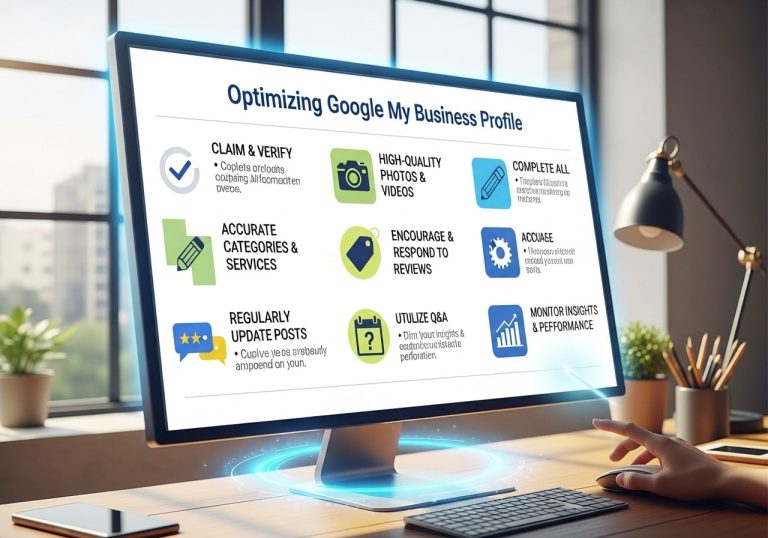
Claiming your Google Business Profile is the single most important step local business owners can take to control how they appear in Google search results and Maps. This comprehensive guide is designed for small business owners, entrepreneurs, and marketing professionals who need to establish their online presence and drive more local customers to their doors.
When you claim a Google Business Profile, you’re taking ownership of your business information across Google’s ecosystem. This free tool directly impacts whether potential customers can find your hours, contact details, and reviews when they search for businesses like yours.
We’ll walk you through the complete claiming process, from locating your existing listing to verifying ownership through phone, postcard, or instant verification methods. You’ll also learn how to optimize your newly claimed profile with compelling photos, accurate business information, and strategic keyword placement that helps you rank higher in local search results.
Finally, we’ll cover troubleshooting common claiming roadblocks and ongoing profile maintenance so you can keep your business visible and competitive in your local market.
Understanding Google Business Profile and Its Impact on Local Visibility
What Google Business Profile is and why it matters for your business
Google Business Profile is your digital storefront on the world’s most popular search engine and mapping service. When customers search for businesses like yours, your Google Business Profile appears as a detailed information panel showing your location, hours, contact details, photos, and customer reviews. This free tool acts as a bridge between your physical business and online customers, making it easier for people to find, contact, and visit your establishment.
Your Google Business Profile directly impacts how customers discover your business online. When someone searches “restaurants near me” or “plumber in Chicago,” Google pulls information from verified business profiles to display relevant results. Without claiming your Google business profile, you’re essentially invisible to millions of potential customers who rely on Google to find local services and products.
The profile also serves as a trust signal for potential customers. A complete, verified profile with photos, accurate information, and positive reviews tells customers your business is legitimate and professional. This digital presence often becomes the first impression customers have of your business, making it a critical component of your marketing strategy.
How verified profiles rank higher in local search results
Google’s algorithm prioritizes verified business profiles in local search results, giving claimed profiles a significant advantage over unclaimed listings. When you complete the verification process for your Google Business Profile, you signal to Google that your business information is accurate and trustworthy, which directly impacts your local search rankings.
Verified profiles appear more prominently in the local pack – those three business listings that appear at the top of Google search results for location-based queries. These prime positions receive the majority of clicks from local searchers, making verification essential for visibility. Google’s ranking factors for local search include proximity, relevance, and prominence, with verification playing a crucial role in establishing prominence.
The verification process also enables access to additional features that boost your profile’s performance. You can add photos, respond to reviews, post updates, and access analytics data – all of which contribute to better search rankings. These enhanced features create more engagement signals that Google interprets as indicators of an active, legitimate business.
The difference between claimed and unclaimed business listings
Unclaimed business listings appear on Google automatically when the platform detects your business information from various online sources. These listings display basic information like your business name, address, and phone number, but they’re essentially placeholder profiles that you cannot control or modify.
| Unclaimed Listings | Claimed Listings |
|---|---|
| Basic information only | Complete control over all details |
| Cannot add photos | Can upload unlimited photos |
| Cannot respond to reviews | Can respond to all reviews |
| No access to analytics | Full analytics dashboard |
| Cannot post updates | Can create posts and announcements |
| May contain inaccurate information | Information is verified and accurate |
Claiming your Google business profile transforms this passive listing into an active marketing tool. You gain complete control over your business information, ensuring accuracy and consistency across Google’s platforms. This control extends to managing photos, updating business hours, adding special offers, and communicating directly with customers through review responses.
Benefits of complete profile ownership and control
Taking ownership of your Google Business Profile unlocks powerful tools that directly impact your business growth. You can showcase your best work through professional photos, highlight special services or products, and keep customers informed about changes to your operations. This level of control helps you present your business exactly as you want potential customers to see it.
Profile ownership also provides valuable customer insights through Google’s analytics dashboard. You can track how customers find your profile, which photos they view most, what actions they take (like calling or visiting your website), and peak times for customer searches. This data helps you make informed decisions about your marketing strategies and business operations.
The ability to manage your online reputation becomes another significant advantage. You can respond professionally to both positive and negative reviews, demonstrating excellent customer service to future customers who read these interactions. Quick, thoughtful responses often turn dissatisfied customers into loyal advocates while showing prospects that you care about customer satisfaction.
Claiming your Google business profile also protects your business from competitors or malicious actors who might try to edit your information or claim your listing themselves. Once verified, only you have the authority to make changes, ensuring your business information remains accurate and under your control.
Finding Your Business Listing on Google Search and Maps
Step-by-step process to search for your existing business listing
Before claiming your Google business profile, you need to determine if your business already has a listing on Google. Start by opening a web browser and navigating to Google.com. Enter your exact business name in the search bar, followed by your city and state. For example, type “Mario’s Pizza Chicago Illinois” or use your complete business address instead of the city and state.
Check both the main search results and the Knowledge Panel that appears on the right side of the screen. Your business might show up as a Google Business Profile listing with basic information like your address, phone number, and hours of operation. If you see your business information displayed in a box format with photos, reviews, and a “Claim this business” button, you’ve found your existing listing.
Next, search for your business on Google Maps by going to maps.google.com and entering the same search terms. Google Maps often displays business listings that might not appear prominently in regular search results. Look for your business pin on the map and click on it to see the detailed information panel.
Try searching with variations of your business name, including abbreviations or common misspellings that customers might use. Sometimes Google creates multiple listings for the same business, so this comprehensive search approach helps you find all potential profiles that need claiming.
Identifying whether your business already appears online
Your business might already have an online presence on Google without you realizing it. Google automatically creates business listings from various data sources, including public records, user submissions, and third-party databases. These auto-generated profiles often contain basic information like your business name, address, and phone number.
Look for these telltale signs that your business appears online:
- Search results showing your business information in a structured format with address and phone details
- Customer reviews appearing under your business name, even if you never set up a profile
- Photos of your business uploaded by customers or Google Street View
- Business hours and contact information displaying in search results
- Your business appearing on Google Maps with a location pin
Check social media platforms and review sites like Yelp, as Google often pulls information from these sources to create business profiles. Your business might also appear in local directory listings that Google uses to populate its database.
Don’t forget to search for your business using different devices and browsers, as Google personalizes results based on location and search history. Ask friends or family members in different areas to search for your business to get a broader perspective on how it appears online.
Recognizing the signs of an unclaimed or unverified listing
Unclaimed Google business profiles have distinct characteristics that make them easy to identify. The most obvious sign is the “Claim this business” or “Own this business?” link that appears when you find your listing. This button indicates that no one has verified ownership of the profile yet.
Unclaimed listings typically show limited information and often appear incomplete or outdated. You might notice:
| Claimed Profile | Unclaimed Profile |
|---|---|
| Detailed business information | Basic details only |
| Current photos and updates | Outdated or limited photos |
| Owner responses to reviews | No responses to customer reviews |
| Regular posts and updates | No recent activity |
| Accurate business hours | Generic or incorrect hours |
Another red flag is inconsistent or incorrect information. Unclaimed profiles frequently display wrong phone numbers, outdated addresses, or incorrect business categories because they rely on automated data collection rather than verified business owner input.
Missing owner verification badges also signal an unclaimed listing. When you claim and verify your Google business profile, Google adds verification indicators that show customers the information comes directly from the business owner.
Pay attention to the review section – if customers have left reviews but there are no owner responses, this strongly suggests the profile remains unclaimed. Business owners who have claimed their profiles typically engage with customer feedback, while unclaimed listings show one-sided conversations.
If you discover multiple listings for your business with slightly different information, this often happens with unclaimed profiles where Google has created duplicate entries from various data sources.
Creating Your Google Business Profile Account

Setting up a Google account for business management
Before you can claim your Google business profile, you need a Google account that will serve as your business management hub. If you already have a personal Gmail account, you can use it for business purposes, but many business owners prefer creating a dedicated account for better organization.
Start by visiting accounts.google.com and clicking “Create account.” Choose “For my personal use” initially, then enter your business email address or create a new Gmail address specifically for your business. Use a professional email format like yourname@yourbusiness.com or businessname.manager@gmail.com.
When setting up your password, make it strong and unique. You’ll be managing important business information, so security matters. Consider using a password manager to keep track of your login credentials.
Once your account is created, take a moment to complete your Google profile with your real name and a professional photo. This helps establish credibility when claiming your business listing and interacting with customers who leave reviews.
Navigating to Google Business Profile dashboard
Getting to your Google Business Profile dashboard is straightforward once you know where to look. Open your web browser and go to business.google.com. This is your main entry point for all Google Business Profile activities.
Sign in using the Google account you just created or your existing business account. You’ll land on the main dashboard where you can see any existing business profiles associated with your account.
The interface is clean and user-friendly. On the left sidebar, you’ll find navigation options including “Home,” “Posts,” “Info,” “Insights,” and “Reviews.” The main dashboard shows your business performance at a glance, including recent customer actions, photo views, and search queries that led people to your profile.
If you’re managing multiple locations, you’ll see options to switch between different business profiles from the dashboard. The search bar at the top helps you quickly find specific businesses if you’re managing several properties.
Starting the business registration process
Ready to claim your Google business profile? The registration process begins right from your dashboard. Look for the “Add business” button or “Manage now” option if Google has already created a listing for your business.
You’ll be prompted to search for your business name first. Type in your exact business name as it appears on your storefront, website, or official documents. Google will show you existing listings that match your search. If you find your business in the results, select it to start the claiming process.
Can’t find your business? No problem. Click “Add your business to Google” to create a new listing from scratch. This happens when your business is brand new or hasn’t been indexed by Google yet.
The system will ask you to confirm that you’re authorized to manage this business. Only business owners, managers, or authorized representatives should proceed with claiming a Google business profile. Making false claims violates Google’s policies and can result in account suspension.
Choosing the right business category and location details
Picking the correct business category is crucial for how to claim your Google business profile effectively. Google uses categories to understand what your business does and when to show it in relevant searches.
Start with your primary category – this should be the most specific option that describes your main business activity. For example, choose “Italian restaurant” instead of just “restaurant” if that’s more accurate. Google provides suggestions as you type, making it easier to find the right fit.
You can add up to 10 categories total, including secondary categories that describe additional services you offer. A pizza restaurant might also select “delivery service” or “catering service” as secondary categories.
Location details require precision. Enter your complete business address exactly as it appears on your official documents and signage. Double-check the spelling of your street name, city, and zip code. Even small errors can cause verification problems later.
For service-based businesses that visit customers, you can choose to hide your address and instead show only your service areas. This option appears after you enter your address and select that you serve customers at their locations.
The map preview lets you verify that Google has plotted your business in the correct location. If the pin seems off, you can drag it to the exact spot where your business operates. This accuracy helps customers find you and improves your local search rankings.
Verifying Your Business Ownership Through Multiple Methods
Phone verification process and when to use it
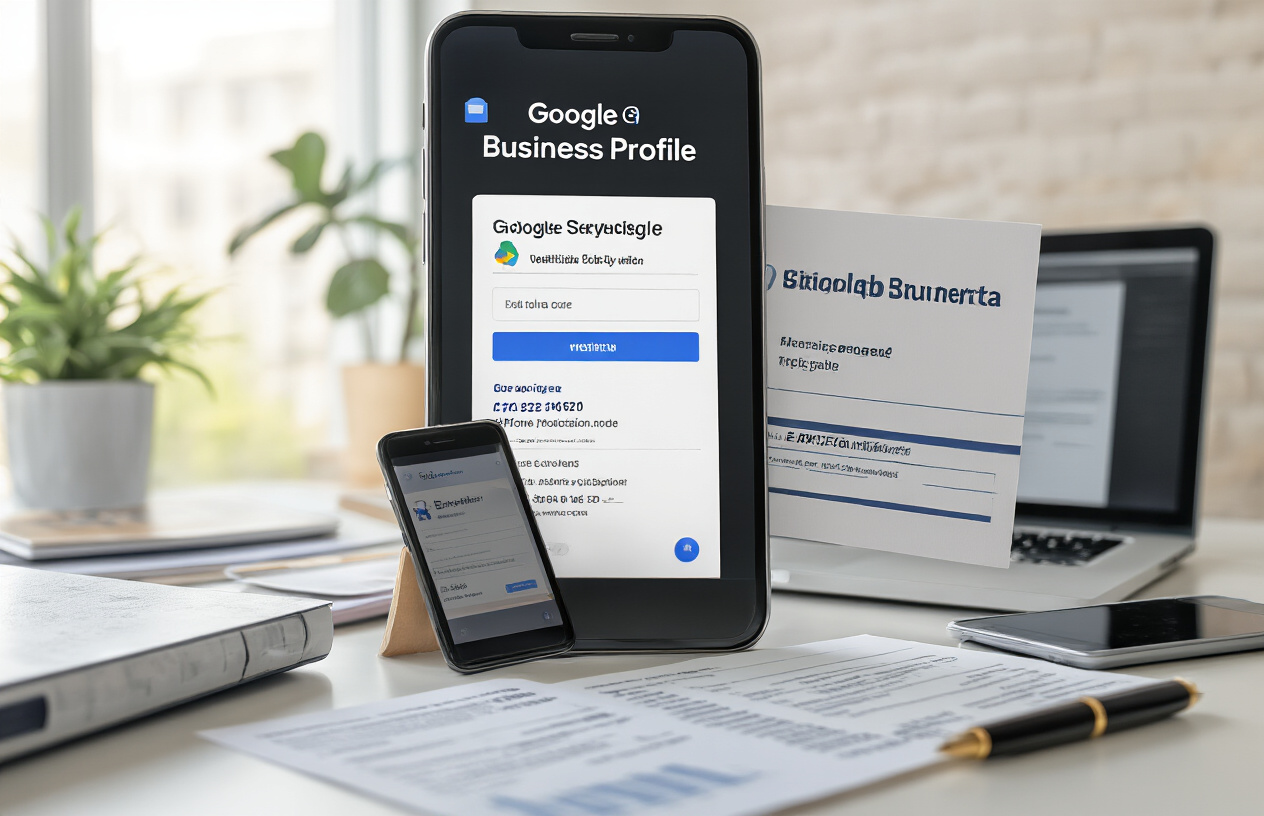
Phone verification is the quickest way to verify your Google Business Profile ownership when claiming your business listing. Google automatically calls the phone number associated with your business within a few minutes of requesting verification. During this automated call, you’ll receive a six-digit verification code that you’ll need to enter into your Google Business Profile dashboard.
This method works best for businesses with dedicated landlines or business phone numbers that are publicly listed and match your business address. You’ll want to ensure someone is available to answer the call during business hours, as the verification code expires after a short time period.
Phone verification is particularly useful for:
- Retail stores and restaurants with established phone systems
- Service businesses operating from fixed locations
- Offices with dedicated business lines
- Any business needing immediate verification to start claiming their Google business listing
Keep in mind that phone verification isn’t available for all business types. Google reserves this option for businesses they can easily verify through public records and existing data.
Postcard verification requirements and timeline expectations
Postcard verification remains Google’s most common method for claiming Google Business Profile ownership. When you select this option, Google mails a physical postcard containing a unique verification code to your business address. This process typically takes 5-14 business days, though rural locations may experience longer delivery times.
The postcard arrives addressed to your business name and includes specific instructions for completing verification. You’ll need to:
- Wait for the postcard to arrive at your registered business address
- Locate the five-digit verification code printed on the card
- Log into your Google Business Profile account
- Enter the code in the verification section
- Complete the claiming process
| Timeline Stage | Expected Duration |
|---|---|
| Postcard request to mailing | 1-2 business days |
| Delivery time | 3-10 business days |
| Code entry deadline | 30 days from receipt |
Postcard verification is mandatory for most business types, especially those without established online presence or phone verification eligibility. Make sure your business address matches exactly what’s listed on your profile to avoid delivery issues.
Email verification for eligible businesses
Email verification offers a streamlined approach for certain businesses that have already established their online presence with Google. This method is only available for businesses that Google can verify through existing data sources, such as websites with proper business markup or established Google Workspace accounts.
When eligible, you’ll see an email verification option during the claiming process. Google sends a verification email to the address associated with your business domain or previously verified account. The email contains a verification link that immediately activates your business profile when clicked.
This method is typically available for:
- Businesses with Google Workspace accounts
- Companies with verified website domains
- Organizations already connected to other Google services
- Established businesses with strong online presence
Email verification happens almost instantly once you click the verification link, making it the fastest option for eligible businesses. However, this option appears less frequently than phone or postcard verification methods.
Video verification options for certain business types
Video verification is Google’s newest verification method, designed specifically for service-area businesses and those operating from non-traditional locations. This option requires you to record a short video walkthrough of your business location while following specific Google guidelines.
During video verification, you’ll need to:
- Record a continuous video showing your business signage
- Display your business address clearly visible in the footage
- Include interior shots of your workspace or office area
- Narrate the video explaining your business operations
- Submit the video through Google’s verification portal
Google reviews these videos manually, which means the verification process can take 3-7 business days. The video requirements are strict – poor lighting, unclear signage, or missing elements can result in rejection and require resubmission.
Video verification works particularly well for:
- Home-based service businesses
- Consulting firms operating from residential addresses
- Mobile service providers
- Businesses in shared office spaces or co-working facilities
This method helps Google verify that your business operates from the claimed location, even when traditional verification methods aren’t suitable for your business model.
Optimizing Your Claimed Profile for Maximum Search Performance
Writing compelling business descriptions with relevant keywords
Your business description serves as your elevator pitch to potential customers searching on Google. Craft a clear, engaging description that naturally incorporates keywords about your services and location. Instead of stuffing keywords awkwardly, weave them into sentences that describe what makes your business unique. For example, a local pizza shop might write: “Family-owned pizzeria serving authentic Italian cuisine in downtown Springfield since 1985. We specialize in wood-fired pizzas, fresh pasta, and traditional Italian desserts.”
Keep your description under 750 characters and focus on your primary services, unique selling points, and what customers can expect. Mention your neighborhood or city naturally, as this helps with local search visibility. Avoid generic phrases like “best quality” or “excellent service” without backing them up with specific details.
Adding high-quality photos and virtual tours
Visual content dramatically impacts customer decisions and search rankings. Upload at least 10-15 high-resolution photos showcasing your storefront, interior, products, services, and team. Google prioritizes businesses with fresh, quality images, so add new photos regularly.
Include photos of:
- Your storefront and signage
- Interior spaces from multiple angles
- Your products or services in action
- Team members at work
- Special events or seasonal displays
Virtual tours provide an immersive experience that sets you apart from competitors. Google Street View trusted photographers can create 360-degree tours, or you can use Google’s simple tour creation tools. Businesses with virtual tours receive twice as many requests for directions and generate more interest than those without.
Setting accurate business hours and contact information
Accurate business information builds trust with both customers and Google’s algorithm. Double-check your hours for each day of the week, including any special holiday hours or seasonal changes. Set up different hours for different services if applicable – many businesses have different hours for phone support versus in-person visits.
Update your contact information immediately when anything changes. This includes:
- Phone numbers (add local and toll-free numbers if available)
- Website URL
- Physical address
- Service areas for businesses that travel to customers
Consider adding appointment URLs, online ordering links, or reservation systems directly to your profile. These features make it easier for customers to take action, which Google rewards with better visibility.
Encouraging and managing customer reviews effectively
Reviews significantly influence both search rankings and customer decisions. Develop a systematic approach to requesting reviews from satisfied customers. Send follow-up emails after purchases or services, include review requests on receipts, or simply ask in person during positive interactions.
Respond to all reviews – both positive and negative – within 48 hours when possible. Thank customers for positive feedback and address concerns in negative reviews professionally. Your responses show potential customers that you care about their experience and are actively involved in your business.
Create review response templates for common situations, but personalize each response. When addressing negative reviews, acknowledge the customer’s concern, apologize if appropriate, and offer to resolve the issue privately. This approach often leads to updated reviews and demonstrates excellent customer service to future prospects.
Utilizing Google Posts and updates to boost engagement
Google Posts function like social media updates directly on your business profile. Create posts about special offers, new products, upcoming events, or company news. These posts appear in search results and help keep your profile active and engaging.
Post types include:
- Offers: Promote special deals with specific terms and expiration dates
- Events: Announce upcoming events, sales, or grand openings
- Products: Showcase new items or bestsellers with compelling descriptions
- Updates: Share company news, achievements, or behind-the-scenes content
Post consistently – aim for at least one post per week. Include eye-catching images and clear calls-to-action. Posts with buttons like “Learn More,” “Buy Now,” or “Sign Up” tend to generate more engagement. Track which types of posts generate the most views and interactions, then create more similar content.
Use posts to highlight seasonal offerings, respond to current events relevant to your business, or share customer success stories. This fresh content signals to Google that your business is active and engaged with its community.
Troubleshooting Common Claiming Issues and Maintaining Your Profile
Resolving Duplicate Listings and Conflicting Information
Duplicate Google Business Profile listings create confusion for customers and dilute your online presence. When claiming your Google Business Profile, you might discover multiple listings for your business with different addresses, phone numbers, or business names. These duplicates often arise from third-party data providers, customer suggestions, or previous claiming attempts.
Start by searching for your business name along with variations and misspellings across Google Maps and Search. Document each duplicate listing you find, noting their specific URLs and information discrepancies. To remove duplicates, use the “Suggest an edit” feature on unauthorized listings or report them through Google My Business support. For listings you own, you can mark them as permanently closed or request removal through your Google Business Profile dashboard.
Conflicting information between listings confuses both Google’s algorithm and potential customers. Standardize your business name, address, and phone number (NAP) across all online platforms. Choose one authoritative version and stick to it consistently. If your business has moved or changed details, update the primary listing first, then systematically address any remaining duplicates.
Dealing with Rejected Verification Attempts
Verification rejections happen for various reasons, but most issues have straightforward solutions. Google may reject your claiming attempt if your business information doesn’t match public records, if the address seems suspicious, or if there’s insufficient evidence of your business legitimacy.
Check that your business name exactly matches what appears on official documents like business licenses or tax records. Generic names or names that seem promotional often trigger rejections. Make sure your business category accurately reflects your primary service or product offering, as mismatched categories can cause verification failures.
For address-related rejections, confirm your business address appears in public databases and matches your official registration documents. Businesses operating from residential addresses or virtual offices face additional scrutiny. Consider these alternative verification methods:
- Phone verification: Available for some business types when postal verification fails
- Email verification: Offered to businesses with established online presence
- Bulk verification: Available for businesses with multiple locations
- Video verification: Sometimes offered for businesses that can’t use other methods
If verification continues failing, contact Google Business Profile support with documentation proving your business legitimacy, such as business licenses, utility bills, or incorporation papers.
Regular Profile Updates and Monitoring for Accuracy
Your Google Business Profile requires ongoing maintenance to stay effective and accurate. Set a monthly schedule to review and update your profile information, ensuring all details remain current and compelling.
Monitor these key elements regularly:
- Business hours: Update for holidays, seasonal changes, or permanent schedule modifications
- Contact information: Verify phone numbers work and emails receive responses
- Photos: Add fresh images monthly and remove outdated ones
- Posts and updates: Share news, offers, and events to keep your profile active
- Customer reviews: Respond to reviews promptly and professionally
Use Google Business Profile insights to track how customers find and interact with your listing. These metrics help identify trends and opportunities for improvement. Pay attention to popular times, customer actions, and search queries that lead people to your business.
Set up Google Alerts for your business name to catch mentions across the web. This helps you spot inconsistent information on other platforms that might conflict with your claimed profile.
Protecting Your Listing from Unauthorized Changes
Once you’ve successfully claimed your Google Business Profile, protecting it from unauthorized modifications becomes essential. Malicious competitors, disgruntled customers, or automated systems might attempt to alter your business information, potentially damaging your local search visibility.
Enable two-factor authentication on your Google account to add an extra security layer. Use a strong, unique password that you don’t use for other accounts. Regularly review who has access to your Google Business Profile and remove any users who no longer need management privileges.
Google allows users to suggest edits to business listings, which can sometimes result in incorrect changes being applied automatically. Monitor your profile weekly for unexpected modifications to your hours, address, phone number, or other critical information. If you notice unauthorized changes, you can reject suggested edits through your dashboard or contact Google support for assistance.
Create a backup of your business information by documenting all current details in a spreadsheet. This makes it easier to restore accurate information if unwanted changes occur. Consider taking screenshots of your profile periodically as additional evidence of your legitimate business details.
Keep your business verification current by responding promptly to any re-verification requests from Google. Sometimes Google requires additional confirmation of business ownership, especially if there have been significant changes to your listing or if suspicious activity has been detected.
Getting your business listed on Google doesn’t have to be complicated. We’ve covered everything from finding your existing listing to setting up your account, verifying ownership, and optimizing your profile for better search results. The key is taking action sooner rather than later—every day your business isn’t properly claimed is a missed opportunity for customers to find you online.
Don’t let technical hiccups or verification challenges stop you from claiming what’s rightfully yours. Start with the basics, verify your ownership using the method that works best for your situation, and keep your profile updated with fresh content and accurate information. Your local customers are already searching for businesses like yours on Google—make sure they can actually find you when they do.
FAQs
What is a Google Business Profile?
A Google Business Profile is a free listing that shows your business information when people search for your company on Google or Google Maps. It displays details like your address, phone number, hours, and customer reviews.
How do I know if my business already has a Google Business Profile?
Search for your business name and location on Google. If a business panel appears on the right side with your company details, you likely already have a profile. You can also check by going to business.google.com and searching for your business.
What do I need to claim my Google Business Profile?
You’ll need a Google account, access to your business phone number or address for verification, and basic business information like your exact address, phone number, business category, and operating hours.
How long does it take to verify my business profile?
Most businesses get verified within a few days to two weeks. Google typically sends a verification postcard to your business address, though some businesses may qualify for instant verification through phone or email.
What if I don’t receive my verification postcard?
If your postcard doesn’t arrive within 14 days, you can request a new one through your Google Business Profile dashboard. Make sure your business address is correct and that mail can be delivered there.
Can I claim a business profile if I work from home?
Yes, but you’ll need to follow Google’s guidelines for home-based businesses. You may need to hide your address and serve customers within a specific area rather than at your location.
What happens if someone else has already claimed my business?
You can request access to the profile if you’re the rightful owner. Go to business.google.com, search for your business, and click “Request access.” You’ll need to provide proof that you own or manage the business.
Why isn’t my business showing up in Google search results?
Your business might not be verified yet, or it could take time for Google to index your information. Make sure your profile is complete with accurate information, photos, and regular updates to improve visibility.
Do I need to pay to have a Google Business Profile?
No, Google Business Profiles are completely free. Be careful of companies that charge you to set up or manage your profile – you can do this yourself at no cost.
What should I do after successfully claiming my profile?
Complete all sections of your profile, add high-quality photos of your business, respond to customer reviews, post regular updates, and keep your information current. This helps your business appear more often in local searches.