Adding your website to Google My Business is a game-changer for local businesses wanting to dominate search results in their area. This guide is perfect for small business owners, local service providers, and anyone managing a brick-and-mortar location who needs better online visibility.
When you connect your website to your Google Business profile, you’re telling Google exactly where to send potential customers. It’s like putting up a digital billboard that shows up right when people are searching for what you offer nearby.
We’ll walk you through the complete setup process, starting with how to prepare both your website and GMB account for a smooth connection. You’ll also learn the exact steps to link your website to your business listing and discover proven ways to maximize your local search rankings once everything’s connected.
By the end, you’ll have a fully optimized Google My Business profile that drives more local traffic to your website and brings customers through your doors.
Understanding Google My Business and Its Impact on Local SEO
What Google My Business is and why it matters for local businesses
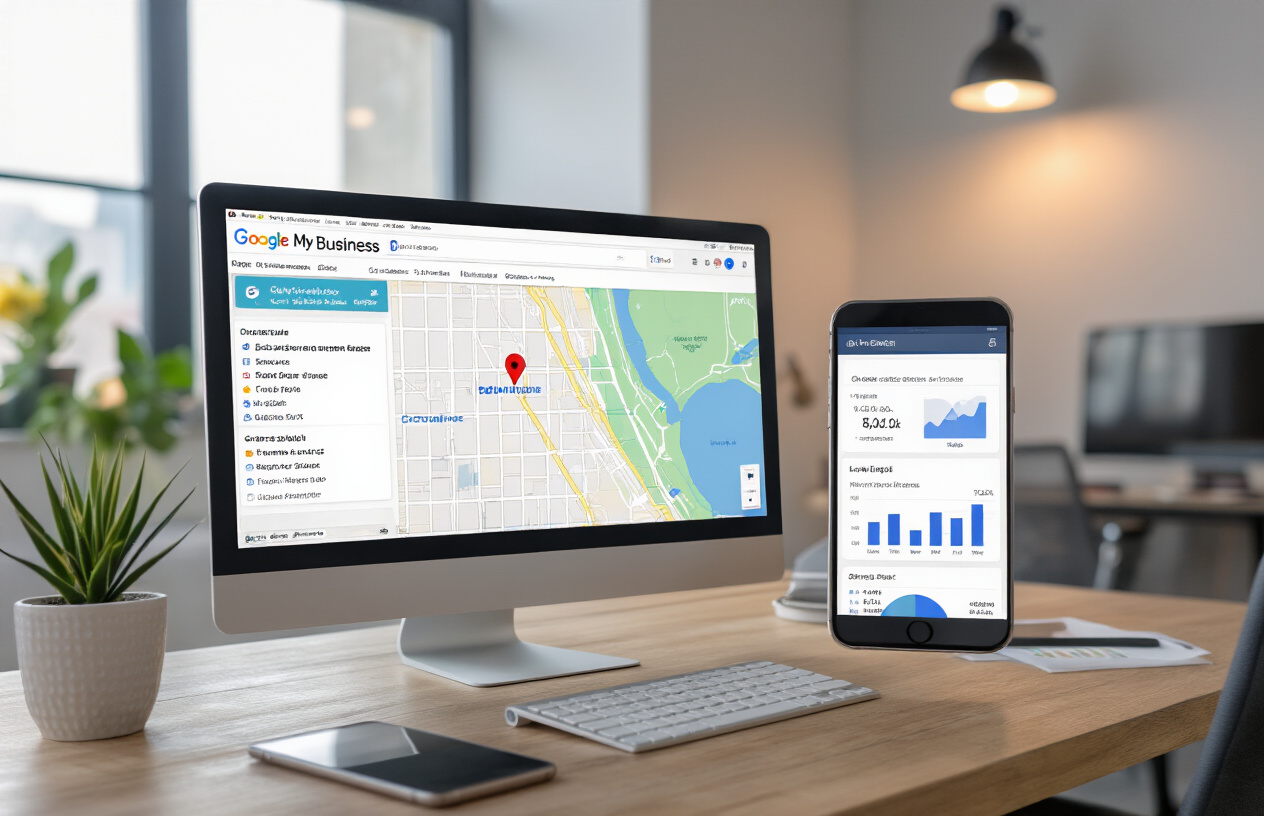
Google My Business (GMB) serves as your digital storefront on Google’s search platform, displaying essential business information whenever potential customers search for services in your area. This free tool allows businesses to manage their online presence across Google Search and Maps, showing crucial details like your business hours, contact information, customer reviews, and photos.
For local businesses, GMB acts as the bridge between your physical location and online visibility. When someone searches for “pizza near me” or “plumber in Chicago,” Google pulls information directly from GMB profiles to populate local search results. Your profile becomes the first impression many customers will have of your business, making it a critical component of your digital marketing strategy.
The platform goes beyond simple directory listings by allowing businesses to post updates, respond to customer reviews, share photos of their work, and even create simple websites. This comprehensive approach helps businesses build trust and credibility with potential customers before they ever step through your doors or visit your website.
How GMB listings affect local search rankings
Google’s local search algorithm considers multiple ranking factors when determining which businesses appear in the coveted “Local Pack” – those three business listings that show up prominently in search results. Your GMB profile directly influences these rankings through several key elements.
Relevance plays a huge role in how Google matches your business with search queries. The more complete and accurate your GMB profile, the better Google understands what your business offers and when to show it in search results. This includes your business category, description, services, and even customer reviews mentioning specific keywords.
Distance from the searcher’s location significantly impacts rankings, but you can’t control where customers search from. What you can control is proximity signals through consistent NAP (Name, Address, Phone) information across all online platforms, including your GMB profile.
Prominence measures how well-known your business is online and offline. Google evaluates this through the number and quality of online reviews, mentions across the web, directory listings, and articles about your business. Your GMB profile serves as the central hub for collecting and displaying this social proof.
| Ranking Factor | How GMB Influences It |
|---|---|
| Relevance | Complete business information, categories, descriptions |
| Distance | Accurate address and service area settings |
| Prominence | Review quantity and quality, photo engagement |
The connection between website integration and improved visibility
Adding your website to your GMB profile creates a powerful synergy that amplifies your local SEO efforts. When you link your website to Google My Business, you’re essentially telling Google that your online presence extends beyond just the basic business listing, providing more comprehensive information about your products and services.
This integration allows Google to crawl and index your website content while associating it directly with your local business profile. The search engine can then use information from your website to better understand your business offerings, service areas, and expertise, leading to more accurate matching with relevant search queries.
Website integration also enables rich snippets and enhanced business information to appear in search results. Google can pull additional details from your site, such as specific services, pricing information, or special offers, and display them alongside your GMB listing. This expanded visibility helps your business stand out from competitors who only maintain basic profiles.
The connection works both ways – your website benefits from the local signals generated by your GMB profile, while your GMB listing gains credibility and depth from your professional website presence.
Benefits of linking your website to your GMB profile
Connecting your website to Google My Business delivers immediate and long-term advantages for your local SEO strategy. The most obvious benefit is increased click-through rates, as customers can easily navigate between your GMB listing and your full website, where they can explore your complete range of services or make purchases.
Enhanced credibility comes naturally when customers see a cohesive online presence. A GMB profile linked to a professional website signals legitimacy and establishes trust, especially important for service-based businesses where customers need confidence before making contact.
Improved data collection becomes possible when you track how customers move from your GMB listing to your website. This user journey data helps you understand customer behavior, optimize your website for local visitors, and make informed decisions about your marketing strategy.
The integration also enables advanced features like booking appointments directly through GMB, showcasing products with photos and descriptions, and creating posts that drive traffic to specific website pages. These features transform your basic business listing into an active marketing tool that works around the clock to attract and convert local customers.
Search engines reward businesses that maintain consistent, comprehensive online profiles across multiple platforms. By linking your website to your GMB profile, you’re creating a stronger digital footprint that search algorithms recognize and favor in local search results.
Preparing Your Website and GMB Account for Integration

Ensuring Your GMB Profile is Claimed and Verified
Before you can add your website to Google My Business, you need to have full ownership of your business profile. Many business owners assume they already control their GMB listing, but that’s not always the case. Google automatically creates basic listings for businesses based on information found online, and these unclaimed profiles offer limited functionality.
Start by searching for your business name and location on Google. If you see your business appear in the local pack or knowledge panel on the right side, you likely already have a listing. Click “Claim this business” or “Own this business?” to begin the claiming process.
The verification process typically involves Google sending a postcard to your business address with a verification code. This can take 1-2 weeks, so plan accordingly. Some businesses qualify for instant verification through phone or email, but physical mail remains the most common method.
Once verified, you gain access to powerful features like adding photos, responding to reviews, posting updates, and most importantly for our purposes, connecting your website to Google My Business. Without verification, you can’t make these crucial updates that impact your local search visibility.
Optimizing Your Website for Local SEO Compatibility
Your website needs specific elements in place before integration with GMB to maximize local SEO benefits. Google looks for consistency between your website and business profile information, so alignment is crucial.
Ensure your website displays your business name, address, and phone number (NAP) exactly as they appear in your GMB profile. These details should be prominently featured on your homepage and contact page. Even small variations like using “St.” instead of “Street” can confuse search engines.
Create location-specific pages if you serve multiple areas. Each page should target relevant local keywords and provide unique, valuable content about your services in that specific location. This helps Google understand your service areas and improves your chances of appearing in local search results.
Add schema markup to your website’s code. This structured data helps search engines understand your business information better. Include LocalBusiness schema with details like operating hours, services offered, and contact information.
Install Google Analytics and Google Search Console to track your website’s performance. These free tools provide valuable insights into how users find and interact with your site, which becomes especially important after linking your website to Google My Business.
Gathering Necessary Business Information and Documentation
Successful GMB integration requires having all your business details organized and readily available. Create a comprehensive list of your business information to ensure consistency across all platforms.
Essential information includes:
- Complete business name (exactly as registered)
- Full address including suite numbers
- Primary phone number and any additional contact numbers
- Business hours for each day of the week
- Holiday hours and special operating schedules
- Service areas (if you serve customers at their locations)
- Business category (primary and secondary categories)
- Website URL and any additional relevant URLs
Gather high-quality photos of your business, including exterior shots, interior views, team photos, and examples of your products or services. Google allows up to 10 photos per category, and businesses with photos receive 42% more requests for driving directions and 35% more click-throughs to their websites.
Prepare your business description carefully. You have 750 characters to explain what makes your business special, so focus on your unique value proposition and include relevant local keywords naturally. Avoid keyword stuffing, but do mention the areas you serve and your primary services.
Document your business credentials, licenses, and certifications. While not all of this information goes directly into GMB, having it organized helps when creating comprehensive business profiles across multiple platforms. This documentation also proves valuable when responding to customer inquiries or reviews.
Keep this information in an easily accessible format, as you’ll reference it frequently when adding your website to Google Business and maintaining your online presence. Regular updates to this master list ensure consistency as your business evolves.
Step-by-Step Process to Add Your Website to Google My Business
Accessing your Google My Business dashboard
Getting into your Google My Business dashboard is your first stop on this journey. Head over to business.google.com and sign in with the Google account that’s associated with your business listing. If you’re managing multiple locations, you’ll see a list of all your business profiles once you log in. Click on the specific business you want to work with.
Your dashboard is like mission control for your local presence. Here you can see your business insights, customer reviews, photos, and most importantly for our purposes, your business information settings. Take a moment to familiarize yourself with the layout if you haven’t been here in a while. Google updates the interface regularly, but the core functions remain accessible through the main navigation menu.
Navigating to the website section in your GMB profile
Once you’re inside your business dashboard, look for the “Info” tab in the left-hand menu. This section houses all your business details including your address, phone number, hours, and website information. Click on “Info” and scroll down until you find the website field.
You might see that Google has automatically pulled a website URL from somewhere, or the field could be empty. Don’t worry if there’s already something there that’s not quite right – you can easily change it. The website field is typically labeled simply as “Website” and appears alongside other contact information like your phone number and email.
Entering and verifying your website URL
Time to add your website to Google My Business. Click on the pencil icon or “Edit” button next to the website field. A text box will appear where you can type in your complete website URL. Make sure you include the full address starting with “https://” or “http://”. For example, enter “https://www.yourbusiness.com” rather than just “yourbusiness.com”.
Double-check your URL for any typos before saving. A single misplaced character means potential customers won’t be able to find your site. Once you’ve entered your website address, Google will automatically verify that the URL is accessible and working. This verification process usually takes just a few seconds.
Confirming the website addition and checking for errors
After entering your website URL, click the “Apply” or “Save” button. Google will process your change and you should see your new website address displayed in your business information. The system runs a quick check to make sure your website is live and reachable.
If there are any issues with your URL, Google will display an error message. Common problems include broken links, websites that are temporarily down, or incorrectly formatted URLs. If you encounter an error, go back and verify your website address is correct and that your site is actually online and accessible.
Your website should now appear in your Google Business Profile, making it easy for customers to visit your site directly from your Google listing. This connection between your GMB profile and website is crucial for how to connect website to Google My Business successfully and boost your local search visibility.
Optimizing Your Website Information Within GMB
Adding Accurate Business Hours and Contact Details
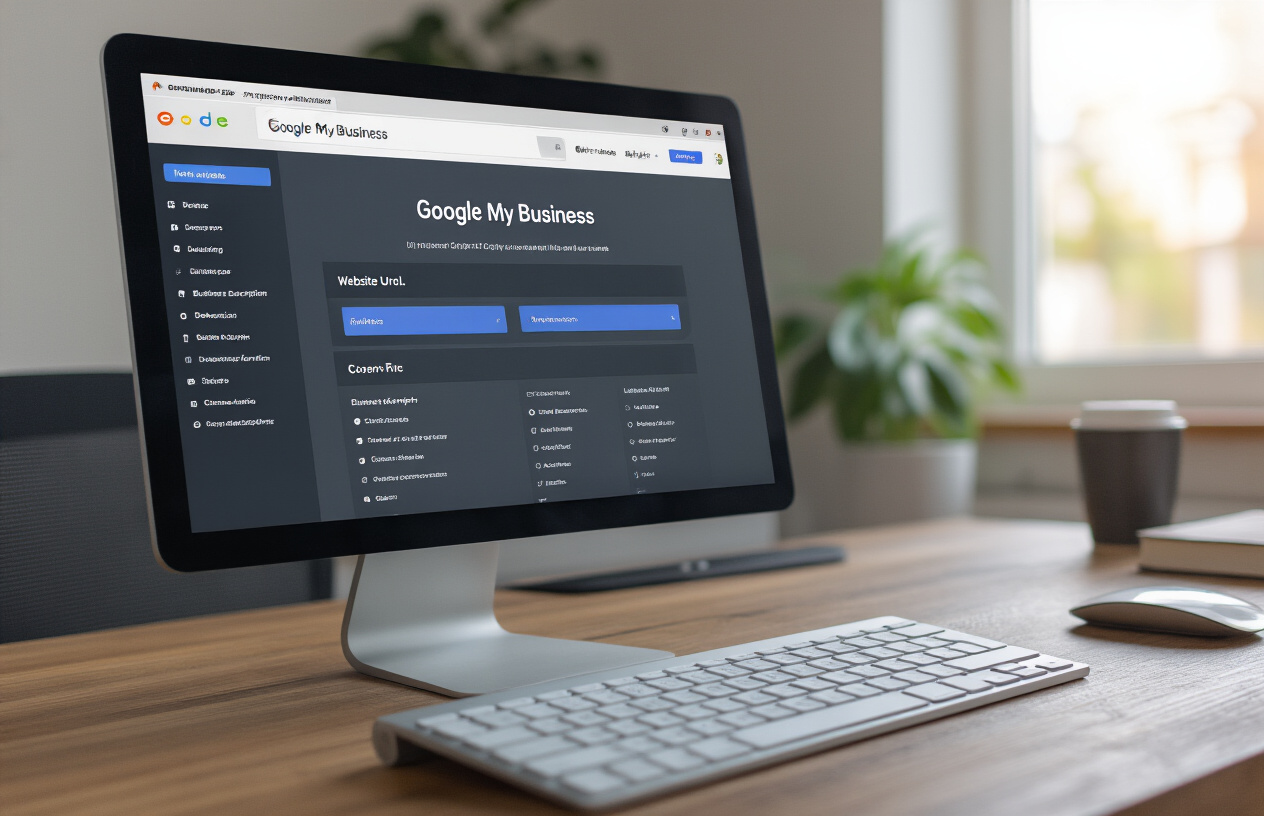
Your Google My Business profile serves as the digital storefront for local customers, making accurate business information absolutely critical. Start by updating your operating hours to reflect your actual schedule, including special hours for holidays, seasonal changes, or temporary adjustments. Many businesses lose potential customers simply because their listed hours don’t match reality.
Include your primary phone number, ensuring it’s a local number when possible since this strengthens local SEO signals. Add multiple contact methods like email addresses and secondary phone numbers if relevant. Double-check that your website URL is correctly formatted and functional – broken links create a poor user experience and can negatively impact your local search rankings.
Including Relevant Business Categories and Descriptions
Selecting the right business categories directly impacts how Google matches your business to local search queries. Choose your primary category carefully as it carries the most weight, then add secondary categories that accurately represent additional services or products you offer.
Your business description should naturally incorporate relevant keywords while clearly explaining what makes your business unique. Avoid keyword stuffing and instead focus on writing for your potential customers. Mention specific services, service areas, and unique selling points that differentiate you from competitors. This description appears in search results and helps customers understand why they should choose your business.
Uploading High-Quality Photos and Virtual Tours
Visual content significantly influences customer decisions, with businesses that include photos receiving 42% more requests for directions and 35% more clicks through to their websites. Upload a variety of high-resolution images including your storefront, interior shots, products, services in action, and team members.
Adding a virtual tour to Google My Business creates an immersive experience that builds trust and familiarity before customers visit. Virtual tours keep visitors engaged longer and provide a competitive advantage in local search results. Update your photos regularly to keep your profile fresh and showcase seasonal offerings or new products.
Ensuring NAP Consistency Across All Platforms
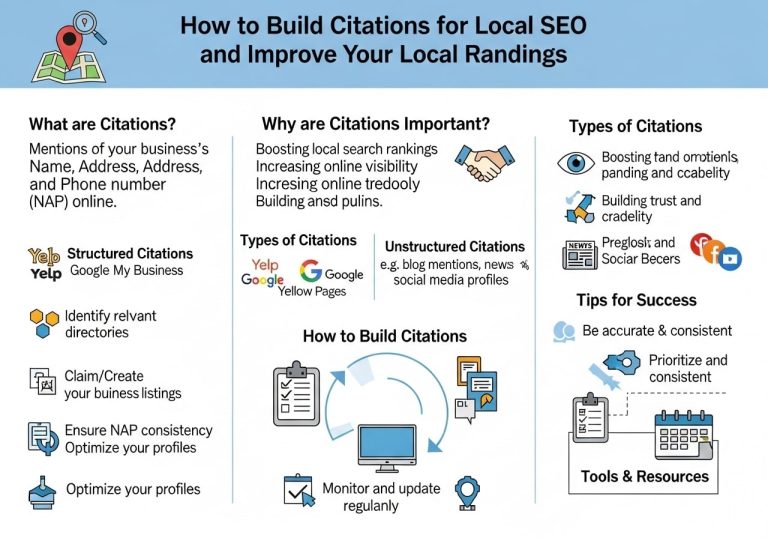
Name, Address, and Phone number (NAP) consistency forms the foundation of local SEO success. Any discrepancies across different platforms can confuse search engines and weaken your local search visibility. Create a master document with your exact business name, complete address format, and phone number, then use this consistently everywhere your business appears online.
Check major directories, social media profiles, your website, and any other online listings to ensure perfect consistency. Even small variations like “Street” versus “St.” or including or excluding suite numbers can impact your local search performance. Regular audits of your NAP information across all platforms help maintain the consistency that search engines need to confidently display your business in local results.
Maximizing Local SEO Benefits After Website Integration

Monitoring your GMB insights and performance metrics
Your Google Business Profile dashboard provides valuable data about how customers find and interact with your business. Check these metrics weekly to understand your local SEO performance. The insights tab shows how customers discover your listing – whether through direct searches for your business name or discovery searches for services you offer.
Pay attention to your listing views, website clicks, and phone calls generated through your profile. These numbers tell you if your website integration is driving meaningful traffic. Photo views and direction requests also indicate customer engagement levels. When you notice drops in any metric, investigate potential causes like outdated information or competitor activity.
Track which search queries bring customers to your profile. This data helps you understand what services customers associate with your business and can guide your content strategy. If certain terms generate high impressions but low clicks, optimize your business description or posts to better match user intent.
Encouraging and managing customer reviews
Reviews significantly impact your local search rankings and customer trust. Develop a systematic approach to requesting reviews from satisfied customers. Send follow-up emails after service completion with direct links to your Google Business Profile review section. Train your staff to naturally mention reviews during positive customer interactions.
Respond to all reviews within 24-48 hours. Thank customers for positive feedback and address any concerns raised in negative reviews professionally. Your responses show potential customers that you care about service quality and customer satisfaction.
Create review response templates for common scenarios, but personalize each response. Mention specific details from the reviewer’s experience when possible. This authentic approach builds credibility with future customers reading your reviews.
Creating regular posts and updates through GMB
Regular posting keeps your business profile active and provides more opportunities to appear in local searches. Share updates about new services, special offers, events, or behind-the-scenes content. Posts appear in your knowledge panel and can include call-to-action buttons directing users to your website.
Use the different post types strategically:
- What’s New posts for general updates and announcements
- Event posts for workshops, sales, or special occasions
- Offer posts for promotions and discounts
- Product posts to showcase specific items or services
Include high-quality images with every post and add relevant keywords naturally in your descriptions. Posts typically remain visible for seven days, so maintain a consistent posting schedule to keep fresh content available.
Using GMB messaging and Q&A features effectively
Enable messaging to let customers contact you directly through your business profile. Set up automated welcome messages and response templates for common questions. This feature builds trust and provides another conversion opportunity beyond website visits.
Monitor and seed your Q&A section with frequently asked questions about your business. Write clear, helpful answers that include relevant keywords and direct people to specific pages on your website when appropriate. Remove or flag inappropriate questions and keep the section updated with current information.
Response time matters for both messaging and Q&A interactions. Quick, helpful responses improve your local SEO signals and customer experience simultaneously.
Tracking local search ranking improvements
Use tools like Google Search Console to monitor how your business appears in local search results. Set up position tracking for your target keywords combined with location modifiers. Track rankings for terms like “[your service] near me” or “[your service] in [your city].”
Monitor your Google Business Profile’s performance in the local pack – the map results that appear for location-based searches. Changes in your local pack rankings directly correlate with visibility and website traffic from local searches.
Document ranking changes alongside the optimization actions you take. This helps you understand which strategies work best for your specific business and market. Consider factors like seasonality, competitor activity, and algorithm updates when analyzing ranking fluctuations.
Set up Google Alerts for your business name and key service terms to stay informed about online mentions and new review platforms where customers might be discussing your business.
Adding your website to Google My Business creates a powerful connection that boosts your local search visibility and helps customers find you more easily. When you properly integrate your website with your GMB profile and optimize all the details, you’re setting up a strong foundation for local SEO success. The steps we’ve covered – from preparing your accounts to maximizing the benefits after integration – work together to improve your search rankings and drive more local traffic to your business.
Don’t let your website sit disconnected from your Google My Business profile any longer. Take action today by following the integration process and double-checking that all your business information matches across both platforms. Your local customers are searching for businesses like yours right now, and this simple but crucial step could be what puts you ahead of competitors who haven’t made this connection yet.
FAQs
What is Google My Business and why should I add my website to it?
Google My Business (now called Google Business Profile) is a free tool that lets you manage how your business appears on Google Search and Maps. Adding your website helps customers find you online and shows Google that your business is real and active, which can improve your local search rankings.
How do I add my website to my Google My Business profile?
Sign into your Google My Business account, click on “Info” from the left menu, find the “Website” section, and enter your full website URL (like http://jamilhosain.com/). Make sure to include “https://” at the beginning and save your changes.
Can I add multiple websites to my Google My Business profile?
No, you can only add one main website URL to your Google My Business profile. However, you can add specific landing pages or product pages in other sections like posts or services descriptions to give customers more options.
What happens if I don’t add a website to my Google My Business listing?
Without a website, customers can’t easily learn more about your services or contact you online. Google might also see your business as less credible, which could hurt your local search rankings and make it harder for people to find you.
Should I use my homepage or a specific page as my main website link?
Your homepage is usually the best choice since it gives visitors a complete overview of your business. However, if you have a dedicated landing page for local customers or a specific service page that matches your Google My Business category, that could work too.
How long does it take for website changes to show up on Google My Business?
Changes typically appear within a few minutes to a few hours. Sometimes it can take up to 24 hours for updates to show across all Google platforms. If you don’t see changes after a day, try refreshing your browser or checking from a different device.
Will adding my website to Google My Business help my local SEO rankings?
Yes, having your website connected to your Google My Business profile helps Google understand your business better and can improve your local search visibility. It also makes it easier for customers to find and visit your website from your Google listing.
What should I do if Google won’t accept my website URL?
Make sure your website is working properly and loads quickly. Check that you’re entering the complete URL with “https://” or “http://”. If your website is new, wait a few days for it to be indexed by Google, then try adding it again.
Can I change my website URL later if I need to?
Yes, you can update your website URL anytime by going to your Google My Business profile, clicking on “Info,” finding the website section, and entering the new URL. Just remember to update it whenever you change domains or move your website.
How can I check if my website is properly connected to my Google My Business profile?
Search for your business name on Google and look at your business listing on the right side of search results. You should see your website link displayed there. You can also check by viewing your Google My Business profile directly to confirm the website URL is showing correctly.