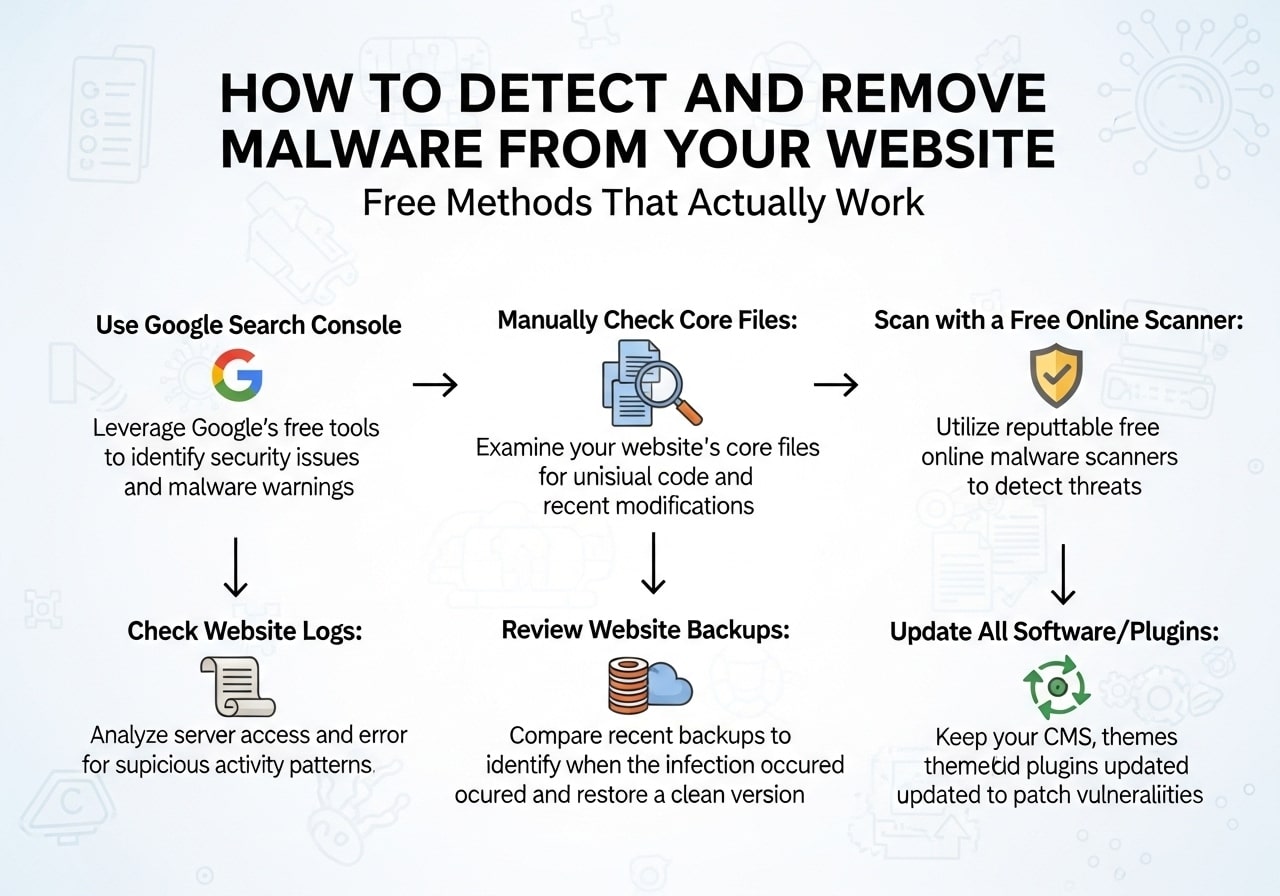
If you’ve ever wondered how to detect and remove malware from your website, you’re not alone. Millions of websites get infected with malicious software every year, causing serious problems for business owners and visitors alike. Learning how to detect and remove malware from your website is one of the most important skills you can have as a website owner.
What is Malware and Why Should You Care?
Malware, short for malicious software, is any program designed to harm, steal data from, or gain unauthorized access to your website or computer. When it comes to websites, malware can take many forms – from simple spam injections to complex remote access trojans that give hackers complete control over your site.
What is a symptom of malware on a website? The signs can be subtle at first but become more obvious as the infection spreads. Some websites experience slow loading times, while others might redirect visitors to spam sites or display unwanted pop-up ads.
The consequences of having malware on your website are serious. Your hosting provider might suspend your account, and visitors will lose trust in your brand. Understanding what happens if a website has malware helps you realize why quick detection and removal are so important.
Common Signs Your Website Has Malware
Knowing how to recognize the warning signs is the first step in learning how to detect and remove malware. Here are the most common symptoms that indicate your website might be infected:
Performance Issues
- Your website loads much slower than usual
- Pages take forever to appear or don’t load at all
- Server response times have increased dramatically
- Your hosting provider contacts you about unusual resource usage
Visible Changes to Your Website
- Strange pop-up ads appear on your pages
- Unknown links or content show up on your site
- Your website redirects visitors to spam or adult websites
- New pages or posts appear that you didn’t create
- Your homepage has been completely changed or defaced
Search Engine Warnings
- Google shows a “This site may be hacked” warning
- Your site gets flagged as dangerous by security software
- Search engines remove your pages from their results
- You receive warnings in Google Search Console
Administrative Issues
- You can’t log into your website’s admin area
- New user accounts appear that you didn’t create
- Files in your website directory that you don’t recognize
- Your website sends spam emails without your knowledge
How to Detect And Remove Malware on Your Website
Learning how to detect and remove malware starts with proper detection methods. There are several ways to check if your website has been compromised, ranging from free online tools to manual inspection methods.
Free Website Scanner Tools
The easiest way to check for malware is using a website malware checker. These online tools scan your site automatically and provide detailed reports about any threats they find.
Popular free website scanner options include:
- Google Safe Browsing Checker: Enter your website URL into Google’s transparency report tool to see if they’ve detected any malware
- VirusTotal: Upload files or enter URLs to scan with multiple antivirus engines
- Quttera: Offers a free website scanner that checks for various types of malware
- Web Inspector by Comodo: Another reliable website scanner online that provides detailed security reports
Manual Detection Methods
While automated scanners are helpful, knowing how can I find hidden malware through manual inspection is equally important. Hidden malware often hides in places that automated tools might miss.
Check these areas manually:
- Review your website files: Look for files with strange names, recent modification dates you don’t remember, or files in directories where they shouldn’t be
- Examine your website’s source code: Right-click on your homepage and select “View Page Source.” Look for suspicious scripts, especially those with encoded or minified code
- Check your .htaccess file: This file controls many aspects of your website and is a common target for hackers
- Review database tables: If you have access to your database, look for unusual entries in your posts, pages, or user tables
Using Website Security Check Online Free Tools
Regular monitoring with website security check online free tools should be part of your routine website maintenance. Set up weekly or monthly scans to catch infections early before they cause serious damage.
Many of these tools also check for:
- SSL certificate issues
- Outdated software versions
- Weak passwords
- Suspicious network activity
Free Tools to Scan Your Website for Malware
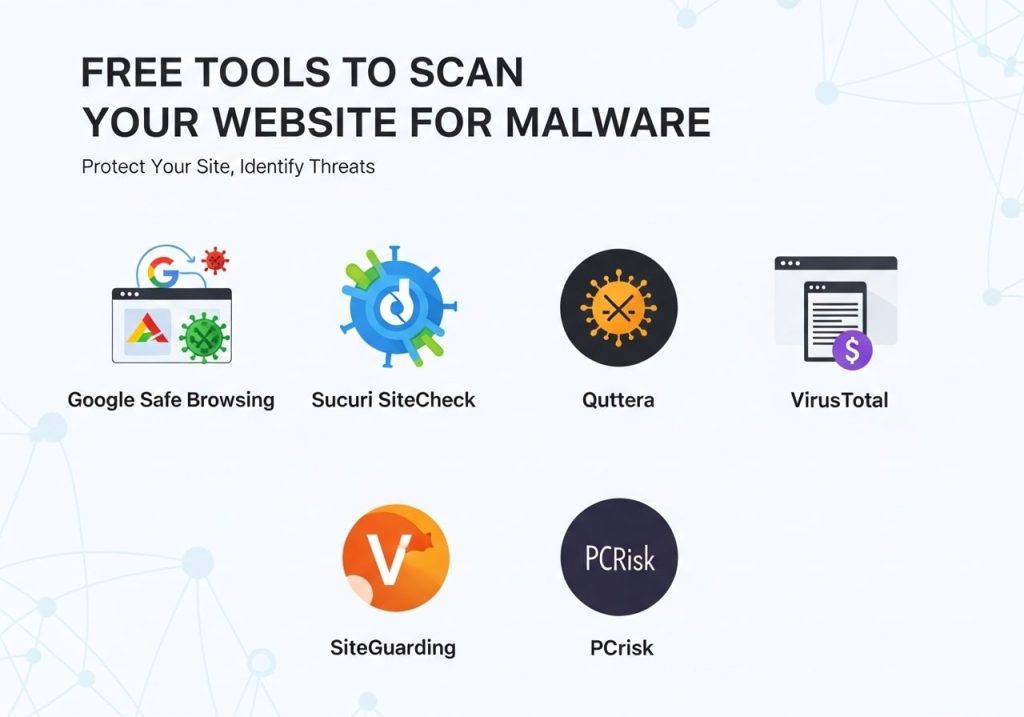
When you need to scan website for malware free, you have several excellent options that don’t cost anything but provide professional-level detection capabilities.
Google Search Console
Google’s free webmaster tool is one of the best resources for website owners. It not only helps with SEO but also alerts you to security issues including malware infections. The Security Issues report shows detailed information about any threats Google has detected on your site.
WordPress Security Plugins (For WordPress Sites)
If your website runs on WordPress, security plugins can provide ongoing protection and scanning:
- Wordfence: Offers both free and paid versions with malware scanning capabilities
- Sucuri Security: Provides website firewall protection and malware detection
- iThemes Security: Includes malware scanning and other security features
Browser-Based Detection
Sometimes malware affects how your website appears in specific browsers. If you’re wondering how to get rid of malware on Chrome, start by checking if the issue appears in other browsers too. Chrome has built-in malware detection that warns users about dangerous websites.
File Comparison Tools
For more advanced users, comparing your current website files with clean backup versions can reveal infected or modified files. Tools like WinMerge (Windows) or FileMerge (Mac) can help identify suspicious changes.
How to Remove Malware from Your Website
Once you’ve detected malware, learning malware how to remove it properly is crucial. The removal process depends on the type of infection and how deeply it has penetrated your website.
Step 1: Take Your Website Offline
Before starting the cleaning process, consider putting your website in maintenance mode. This protects visitors from potential harm and prevents the malware from spreading further.
Step 2: Change All Passwords
Change passwords for:
- Your website’s admin accounts
- FTP/SFTP access
- Hosting control panel
- Database access
- Email accounts associated with your website
Step 3: Update Everything
Outdated software is a common entry point for malware. Update:
- Your content management system (WordPress, Joomla, etc.)
- All plugins and themes
- Server software if you have access
Step 4: Remove Infected Files
This is where knowing how to detect and remove remote access trojan infections becomes important. Remote access trojans are particularly dangerous because they give hackers ongoing access to your website.
For file removal:
- Delete any files you don’t recognize
- Replace infected files with clean versions from backups
- Check and clean your .htaccess file
- Remove any suspicious database entries
Step 5: Use Malware Removal Tools
Several tools can help with website malware removal:
- Malware removal plugins: For WordPress sites, plugins like Anti-Malware Security can automatically clean infected files
- Manual cleaning: For advanced users, carefully examine and clean infected files by hand
- Professional services: Companies like Sucuri offer website malware removal free trials or paid services for complex infections
Step 6: Restore from Clean Backups
If the infection is severe, restoring from a clean backup might be the fastest solution. Make sure the backup was created before the infection occurred.
Preventing Future Malware Infections
Understanding how to recognize remove and avoid malware includes prevention strategies that keep your website safe long-term.
Regular Updates and Maintenance
- Keep your content management system updated
- Update plugins and themes immediately when new versions are available
- Remove unused plugins and themes
- Use strong, unique passwords for all accounts
Security Best Practices
- Install a web application firewall (WAF)
- Enable two-factor authentication where possible
- Regular backup your website to multiple locations
- Monitor your website for unusual activity
- Use reputable hosting providers with good security measures
User Education
If multiple people have access to your website:
- Train users about phishing emails and social engineering
- Limit user permissions to only what’s necessary
- Regularly review user accounts and remove inactive ones
What Happens if a Website Has Malware
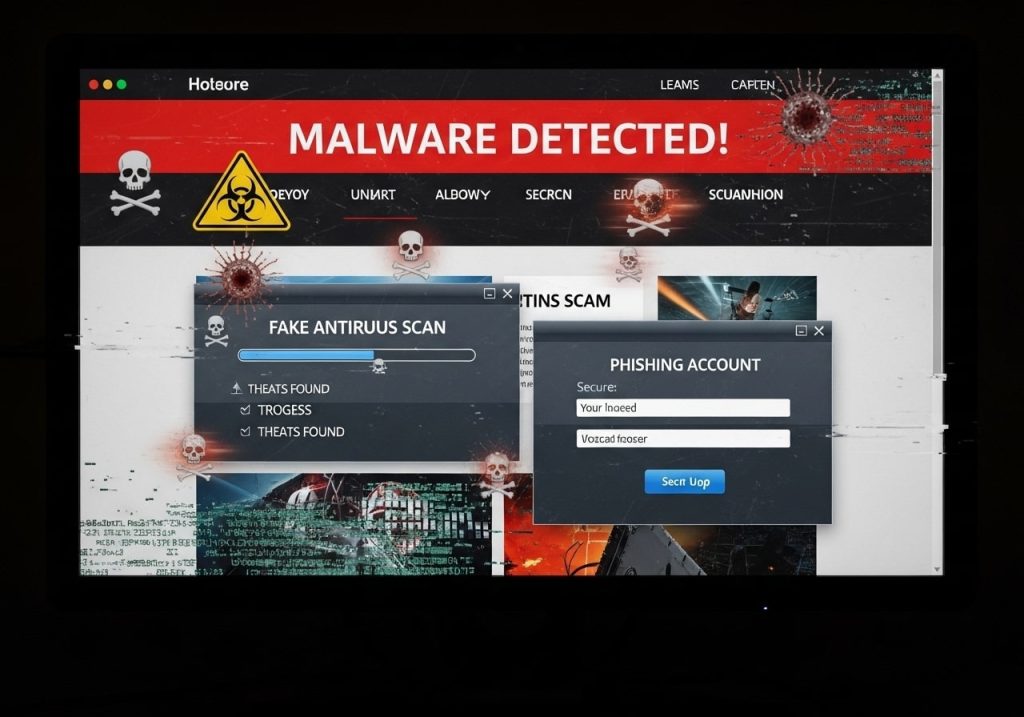
The consequences of malware infections extend far beyond just technical problems. What happens if a website has malware affects your business, reputation, and bottom line.
Search Engine Penalties
Search engines take malware very seriously. Google alone flags about 10,000 websites per day for malware. When your site gets flagged:
- Your search rankings drop dramatically
- Warning messages appear in search results
- Your site might be completely removed from search results
- Recovery can take weeks or months even after cleaning
Loss of Customer Trust
Visitors who encounter malware warnings or infected content lose trust in your brand. Studies show that 64% of consumers avoid websites that have been compromised, and many never return even after the site is cleaned.
Financial Impact
- Lost sales from blocked or redirected traffic
- Costs for professional malware removal services
- Potential legal issues if customer data is compromised
- Increased hosting or security costs
Hosting Provider Actions
Many hosting providers will:
- Suspend your account temporarily or permanently
- Charge fees for cleanup services
- Require proof that malware has been removed before restoring service
Professional Help vs DIY Solutions
Deciding between learning how to permanently remove malware yourself or hiring professionals depends on several factors.
When to Handle It Yourself
DIY removal works well when:
- The infection is caught early and appears limited
- You have technical experience with websites
- You have recent, clean backups available
- The malware type is common and well-documented
When to Call Professionals
Professional website malware removal services are worth considering when:
- The infection is complex or deeply embedded
- Your website handles sensitive customer data
- You lack technical experience or time
- Previous DIY attempts have failed
- Your business depends heavily on website traffic
Professional services typically cost between $99-$500 depending on the complexity, but they often include guarantees and ongoing monitoring.
Browser-Specific Issues: Chrome Malware Removal
If you’re specifically dealing with how to get rid of malware on Chrome, the issue might be browser-specific rather than website-specific.
Chrome-Specific Solutions
- Run Chrome’s built-in cleanup tool (Settings > Advanced > Reset and clean up)
- Remove suspicious extensions
- Clear browsing data including cookies and cached files
- Reset Chrome settings to defaults
- Scan your computer with antivirus software
Sometimes what appears to be website malware is actually adware or browser hijackers installed on individual computers rather than your website itself.
Learning how to detect and remove malware from your website is an ongoing process, not a one-time task. Regular monitoring, prompt updates, and quick response to threats will keep your website safe and your visitors protected. Whether you choose free scanning tools or professional services, the important thing is to act quickly when malware is detected.
Remember that prevention is always better than cure. Invest time in security measures now to avoid the much larger headaches and costs that come with malware infections later. Stay vigilant, keep your software updated, and don’t hesitate to seek professional help when needed.
Take action today: Scan your website with one of the free tools mentioned above, and set up regular monitoring to catch any future threats before they become serious problems.
FAQs
How do I know if my website has malware?
You’ll usually notice some warning signs like slower loading times, strange pop-ups appearing on your site, or unexpected redirects to other websites. Google might also flag your site with security warnings, and you might see suspicious files or code that you didn’t add. Your web hosting provider may send you alerts about unusual activity too.
What are the best free tools to scan my website for malware?
Some reliable free options include Google Search Console, which alerts you to security issues, and online scanners like Sucuri SiteCheck, Quttera, or VirusTotal. You can also use free versions of security plugins like Wordfence (for WordPress) or manually check your files through your hosting control panel.
Can I remove malware from my website myself, or do I need to hire someone?
You can definitely do it yourself if you’re comfortable with basic website management. Most malware removal involves deleting infected files, cleaning up code, and updating your security. However, if you’re not tech-savvy or the infection is severe, getting professional help might save you time and prevent further damage.
What should I do first when I discover malware on my site?
Start by backing up your website immediately, even if it’s infected – you might need clean files from the backup later. Then change all your passwords, including hosting, admin accounts, and FTP access. Next, take your site offline temporarily to prevent further damage and protect your visitors.
How do I clean infected files without breaking my website?
Before making any changes, create a backup of everything. Compare your current files with clean versions from recent backups to spot the differences. Look for suspicious code, unexpected files, or modified dates that don’t match your updates. Remove only the malicious code, not entire files, unless you’re sure they’re completely infected.
Why does malware keep coming back even after I remove it?
This usually happens because the original entry point wasn’t fixed. Malware often gets in through outdated software, weak passwords, or vulnerable plugins. If you only clean the infected files but don’t patch the security hole, hackers can get back in easily. Make sure to update everything and strengthen your security after cleaning.
Are free malware removal methods as effective as paid ones?
Free methods can be very effective, especially for basic infections. The main difference is that paid services often provide more comprehensive scanning, automatic cleaning, and ongoing monitoring. For simple malware cases, free tools work great. Complex infections might need more advanced techniques that come with paid solutions.
How often should I scan my website for malware?
Check your site at least once a week using free online scanners. Set up Google Search Console to get automatic alerts about security issues. If you run a high-traffic site or handle sensitive information, consider daily monitoring. Regular scanning helps catch problems early before they spread or cause serious damage.
What can I do to prevent malware from infecting my website again?
Keep your website software, themes, and plugins updated regularly. Use strong, unique passwords and enable two-factor authentication where possible. Only install plugins and themes from trusted sources. Set up regular automated backups and consider using a web application firewall for extra protection.
Should I inform my website visitors about a malware infection?
Yes, transparency is important. If the malware could have affected user data or created security risks for visitors, let them know what happened and what you’re doing to fix it. You don’t need to share technical details, but a simple notice about temporary security maintenance builds trust and shows you take their safety seriously.