
Managing appointments just got easier with Google Calendar’s built-in booking features. This guide is perfect for small business owners, freelancers, and service providers who want to streamline their scheduling process without investing in expensive booking software.
You’ll discover how to book appointment using Google Calendar through simple setup steps that take minutes, not hours. We’ll walk you through customizing your booking page to match your brand and converting more visitors into confirmed appointments. You’ll also learn the best ways to share your booking link and manage incoming requests so you never miss an opportunity or double-book again.
Set Up Your Google Calendar for Appointment Booking
Enable appointment scheduling feature in settings
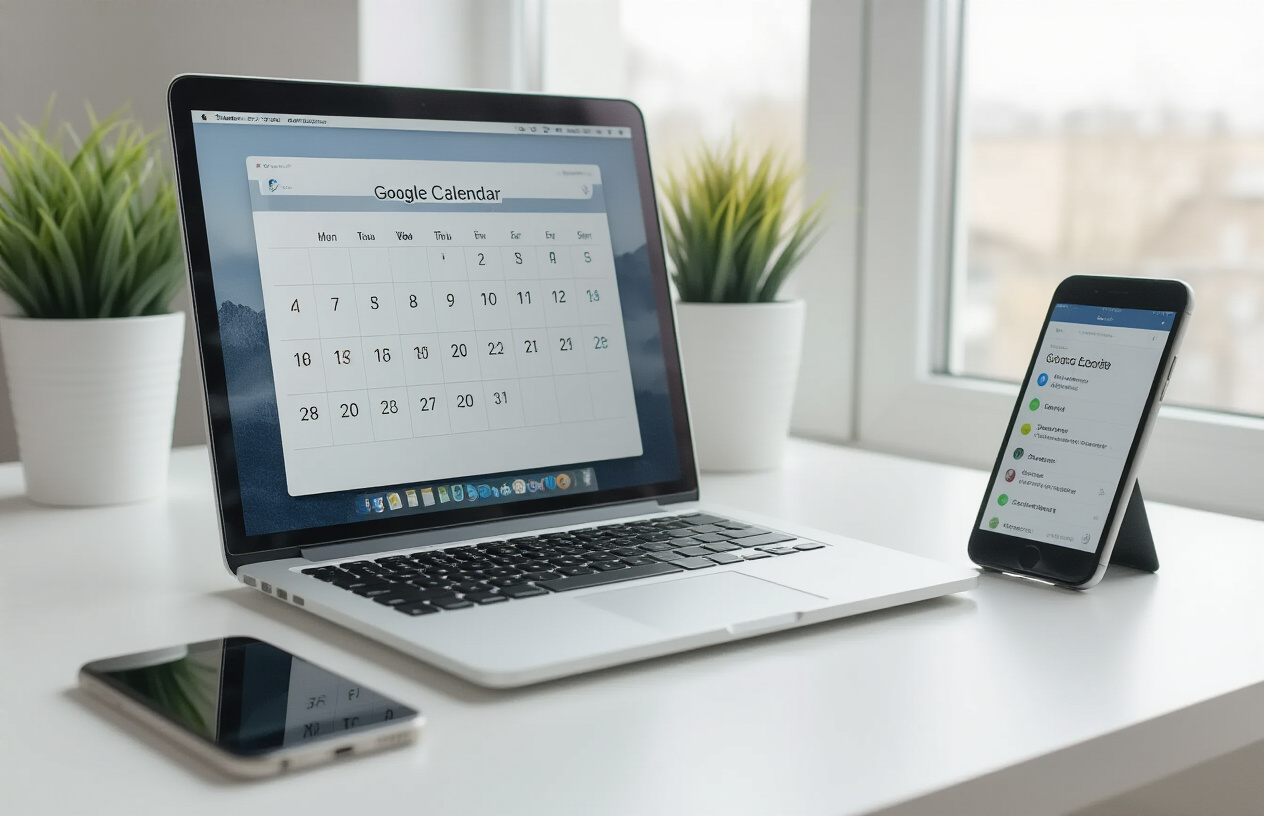
Getting your Google Calendar ready to book appointments starts with turning on the appointment scheduling feature. Head over to your Google Calendar settings by clicking the gear icon in the top right corner, then select “Settings” from the dropdown menu. Look for the “Appointment schedules” section in the left sidebar – this is where the magic happens.
Click on “Create” to set up your first appointment schedule. You’ll need to give it a name that makes sense for your business, like “Consultation Calls” or “Client Meetings.” This feature transforms your regular calendar into a professional appointment booking system that clients can use without needing access to your personal schedule.
The appointment scheduling feature works differently from regular calendar events. Instead of manually creating each appointment, clients can see your available time slots and book directly. This eliminates the back-and-forth emails that usually come with scheduling meetings.
Configure your availability hours and time zones
Setting up your availability correctly is crucial for smooth appointment booking. When you create your appointment schedule, you’ll see options to define your working hours for each day of the week. Be realistic about when you’re actually available – there’s nothing worse than getting bookings when you can’t honor them.
Your time zone settings matter more than you might think, especially if you work with clients across different regions. Google Calendar automatically handles time zone conversions, but you need to make sure your primary time zone is set correctly. Go to your calendar settings and verify the time zone matches your location or preferred working time zone.
You can set different availability windows for different days. Maybe you take client calls Monday through Thursday but keep Fridays for administrative work. Or perhaps you prefer morning appointments on some days and afternoon slots on others. The flexibility here lets you match your natural energy patterns with client meetings.
Set buffer times between appointments
Buffer times are your secret weapon against back-to-back appointment burnout. These small gaps between meetings give you time to wrap up notes, grab a coffee, or just take a breath before the next client arrives. Without buffers, you risk running late and starting each appointment feeling frazzled.
When setting up your appointment types, look for the buffer time options. You can add time before appointments, after appointments, or both. A 10-15 minute buffer is usually enough for most types of meetings, but longer sessions might need more transition time.
Think about travel time too. If you’re meeting clients in person, you’ll need longer buffers to account for getting from one location to another. Even virtual meetings benefit from buffers – technical difficulties happen, and you’ll want time to sort them out without keeping your next client waiting.
Create appointment types for different services
Different services need different appointment setups, and Google Calendar lets you create multiple appointment types to handle this variety. Maybe you offer 30-minute consultations and 90-minute strategy sessions – these should be separate appointment types with their own durations and descriptions.
Each appointment type can have its own availability schedule too. Your quick consultations might be available every weekday, while intensive sessions are only offered on specific days when you have longer blocks of time. This granular control helps you manage your energy and deliver better service.
Include clear descriptions for each appointment type so clients know exactly what they’re booking. Mention what they should prepare, how long the session will last, and whether it’s in-person or virtual. The more information you provide upfront, the smoother the actual appointment will go.
Customize Your Booking Page for Maximum Conversions
Add compelling business description and contact information
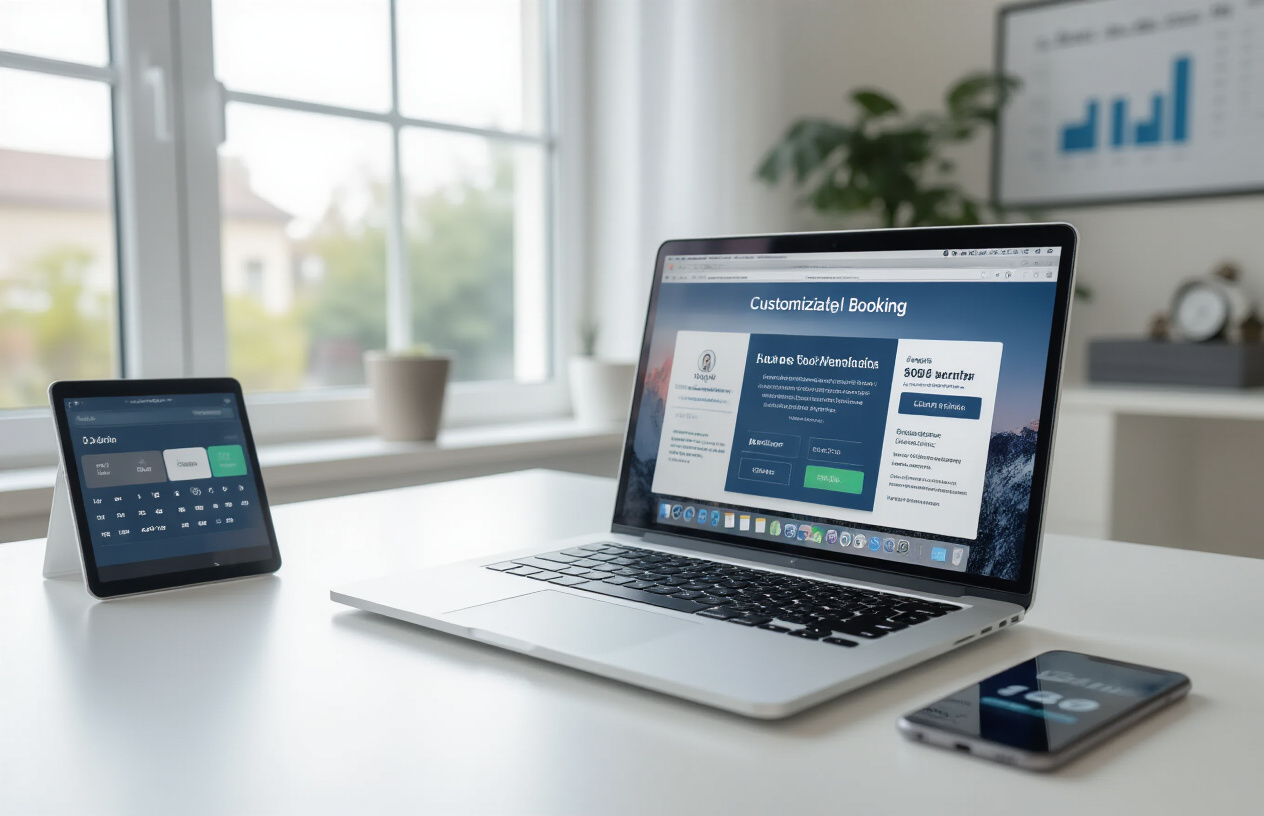
Your booking page serves as the first impression potential clients get of your business, so making it count is crucial. When you book appointment using google calendar, the description section becomes your elevator pitch in digital form. Write a clear, engaging description that explains what you do and how you help people solve their problems.
Keep your business description concise but informative – aim for 2-3 sentences that capture your value proposition. For example, instead of saying “We provide services,” try “I help busy professionals streamline their workflow through personalized productivity coaching sessions.” This approach immediately tells visitors what they’ll get from booking with you.
Contact information builds trust and accessibility. Include your phone number, email, and business address if relevant. This transparency shows you’re a legitimate business and gives clients multiple ways to reach you if needed. Many people feel more comfortable booking appointments google calendar when they can easily find your contact details.
Upload professional photos and branding elements
Visual elements make your booking page memorable and professional. Upload a high-quality headshot or team photo that shows the face behind the business. People connect with people, and seeing who they’ll be meeting creates instant trust and familiarity.
Your logo and brand colors should appear consistently throughout the page. This visual consistency reinforces your brand identity every time someone visits your google calendar appointment booking page. Even if you’re a solopreneur, maintaining professional branding signals that you take your business seriously.
Consider adding photos of your workspace, products, or service in action. A therapist might show their comfortable office space, while a fitness coach could display their training environment. These visuals help clients know what to expect and create excitement about their upcoming appointment.
Set clear appointment duration and pricing details
Transparency about time and cost eliminates booking friction. Clearly state how long each appointment lasts and what clients can expect during that time. If you offer different service types, create separate booking options with specific durations for each.
Pricing information should be upfront and easy to understand. Hidden costs create distrust and lead to cancellations. When people use google calendar to book appointments, they want to know exactly what they’re committing to financially before clicking that final booking button.
Include cancellation policies and rescheduling procedures directly on your booking page. This prevents confusion later and sets clear expectations from the start. A simple note like “Please provide 24 hours notice for cancellations” helps both you and your clients manage expectations effectively.
Consider offering package deals or multiple session discounts directly through your booking system. This can increase your average booking value while providing clients with cost savings for commitment.
Share Your Booking Link Effectively

Generate and copy your unique appointment booking URL
Once you set up your Google Calendar appointment booking page, Google automatically creates a unique URL that clients can use to book appointments with you. To find this link, open your Google Calendar and navigate to the gear icon in the top right corner. Select “Settings,” then choose “Appointment schedules” from the left sidebar. Click on your appointment schedule name, and you’ll see the booking page URL displayed prominently.
Copy this link by clicking the copy button next to it. The URL typically looks something like “calendar.google.com/calendar/u/0/appointments/schedules/[your-unique-id]”. Save this link somewhere accessible since you’ll be sharing it across multiple platforms. You can also customize the URL by adding UTM parameters to track where your bookings come from, helping you understand which sharing methods work best for your business.
Embed booking widget on your website or social media
Google Calendar makes it easy to embed your appointment booking directly into your website. After copying your booking URL, you can create an embedded widget by adding an iframe code to your website’s HTML. The basic code structure looks like:
<iframe src="your-booking-url" width="600" height="800"></iframe>
Adjust the width and height to match your website’s design. Many website builders like WordPress, Wix, and Squarespace support iframe embedding through their block editors. For social media platforms like Facebook, you can’t directly embed the widget, but you can share the booking link in your bio section, posts, and stories.
Instagram users often add the booking link to their bio or create highlight stories featuring the appointment booking process. LinkedIn allows you to include booking links in your profile summary and contact information section.
Share link via email signatures and business cards
Your email signature presents a perfect opportunity to promote your appointment booking system. Add a professional line like “Schedule a meeting: [your-booking-link]” or create a clickable button using HTML in your email signature. Most email clients support HTML signatures, allowing you to create attractive call-to-action buttons.
For business cards, include a QR code that links directly to your booking page. Many free QR code generators allow you to create codes that redirect to your Google Calendar appointment booking URL. This approach works particularly well for professionals who meet clients in person, such as consultants, therapists, or service providers.
Consider creating two versions of your business card – one with a QR code and another with a shortened URL using services like bit.ly or tinyurl.com. Shortened URLs are easier to type and remember when clients can’t scan the QR code.
Add booking link to Google My Business profile
Your Google My Business profile offers multiple locations to add your appointment booking link. In the “Info” section, you can add the booking URL as your website link or include it in your business description. The appointment booking button feature in Google My Business directly integrates with your Google Calendar booking system.
To set this up, log into your Google My Business account, select your business listing, and navigate to the “Info” tab. Look for the “Add appointment URL” option and paste your Google Calendar booking link. This creates a prominent “Book appointment” button that appears when customers find your business on Google Search or Google Maps.
You can also add the booking link to your Google My Business posts, which appear in your business profile and can help drive more appointment bookings. Regular posts featuring your services with direct booking links tend to perform well and keep your profile active and engaging.
Manage Incoming Appointment Requests Like a Pro

Set up automatic confirmation and reminder emails
Once someone books an appointment using Google Calendar’s appointment booking system, you’ll want to make sure they receive immediate confirmation and helpful reminders. Google Calendar automatically sends confirmation emails when appointments are booked, but you can customize these messages to include important details like meeting links, preparation instructions, or contact information.
To set up reminder emails, navigate to your Google Calendar settings and click on “Event settings.” Here, you can configure default notifications for all appointment bookings. Most professionals find that sending reminders 24 hours and 1 hour before the appointment works best to reduce no-shows. You can also add custom text to these reminders, such as cancellation policies or what clients should bring to the meeting.
For Google Workspace users, the appointment booking pages feature allows even more customization. You can create branded email templates that match your business style and include specific instructions based on the type of appointment. This professional touch helps build trust and ensures clients know exactly what to expect.
Review and approve appointment requests promptly
When you book appointments with Google Calendar using approval settings, incoming requests land in a pending queue that requires your attention. Quick response times show professionalism and prevent potential clients from booking elsewhere while waiting for confirmation.
Set up mobile notifications so you can approve requests immediately, even when away from your desk. The Google Calendar app makes it easy to review appointment details, check for conflicts, and approve or decline requests with just a few taps. Most successful businesses aim to respond within 2-4 hours during business days.
Consider creating approval templates for common scenarios. For instance, if someone requests a time slot that’s unavailable, have a standard response ready that offers alternative times. This speeds up your workflow while maintaining personalized communication with clients.
Handle cancellations and rescheduling efficiently
Life happens, and appointments get cancelled or rescheduled. Having a smooth process for these changes protects your time while keeping clients happy. When using Google Calendar for appointment booking, cancelled slots automatically become available again, but you should also have policies in place for last-minute changes.
Create clear cancellation and rescheduling policies that you can easily share with clients. Many professionals require 24-48 hours notice for changes and use Google Calendar’s automatic features to enforce these rules. You can set minimum notice periods that prevent bookings too close to the appointment time.
For rescheduling requests, guide clients to your booking page where they can see real-time availability rather than playing phone tag or email back-and-forth. This approach saves time for both parties and reduces the chance of double-booking errors. Keep a buffer zone between appointments to account for overruns and last-minute schedule adjustments.
Optimize Your Calendar Settings for Better Client Experience
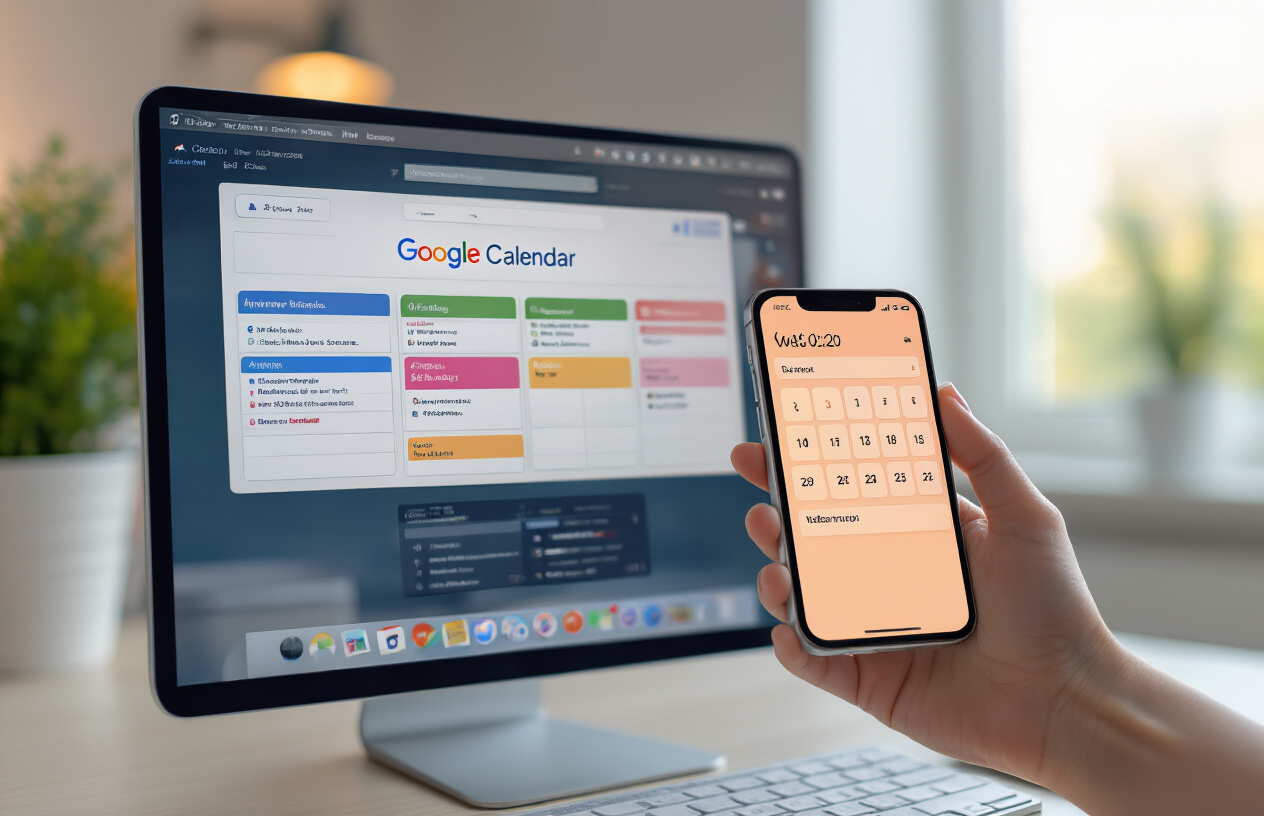
Create Custom Booking Forms to Gather Essential Information
Getting the right details from clients before they show up can save hours of back-and-forth communication. Google Calendar’s appointment booking system lets you build custom forms that capture exactly what you need. When setting up your booking page, add questions that help you prepare for each meeting. Ask for project details, preferred communication methods, or specific challenges they’re facing.
The smart move is keeping forms short but focused. Too many questions scare people away, while too few leave you unprepared. Include required fields for contact information and meeting purpose, then add optional fields for extra context. You can also set up conditional questions that appear based on previous answers, making the experience feel personalized.
Set Up Payment Collection for Paid Appointments
Money conversations get awkward when they happen after the service. Google Calendar appointment booking integrates with payment processors to handle transactions upfront. This feature works great for consultations, coaching sessions, or any service where you charge by the hour.
Setting up payment collection is straightforward through Google Workspace. Connect your preferred payment gateway, set your rates, and the system handles the rest. Clients pay when they book, which dramatically reduces no-shows and eliminates the need to chase payments later. You can offer different pricing tiers for various appointment types or durations.
Configure Automatic Meeting Links for Virtual Appointments
Virtual meetings need seamless connection points, and manual link sharing creates unnecessary friction. Google Calendar can automatically generate and include meeting links in appointment confirmations. This works with Google Meet by default, but you can also integrate Zoom, Microsoft Teams, or other platforms.
The beauty of automatic links is that everything happens behind the scenes. Clients get their meeting details immediately after booking, complete with dial-in numbers and access codes. You can customize the meeting settings too – enable waiting rooms, require passwords, or automatically record sessions based on your needs.
Block Personal Time to Prevent Overbooking
Your calendar needs breathing room, and clients shouldn’t see every minute of your day as available. Use Google Calendar’s blocking features to protect personal time, lunch breaks, and preparation periods. This prevents the dreaded back-to-back booking nightmare that leaves you running from one meeting to the next.
Create recurring blocks for regular commitments like gym sessions, family time, or administrative work. You can also add buffer time before and after appointments to review notes or decompress. The goal is creating a schedule that actually works for your life, not just your business.
Sync With Other Calendars to Avoid Conflicts
Double-booking kills credibility faster than almost anything else. If you use multiple calendars for different aspects of your life, syncing them prevents scheduling disasters. Google Calendar can pull in events from other Google accounts, Outlook, Apple Calendar, and most other major platforms.
Set up two-way sync whenever possible so changes appear everywhere automatically. This is especially important if you have a team managing bookings or use different calendars for personal and professional commitments. Regular sync checks ensure everything stays aligned, even when you make last-minute changes across different platforms.
Google Calendar can transform how you handle appointment bookings, turning what used to be a back-and-forth email nightmare into a smooth, automated process. By setting up your calendar properly, customizing your booking page to match your brand, and sharing your link strategically, you’ll save hours each week while giving your clients a professional experience they’ll remember.
The real magic happens when you fine-tune your calendar settings and develop a system for managing requests efficiently. Your clients will appreciate the convenience of booking at their own pace, and you’ll love having more control over your schedule. Start with these basics, test what works best for your business, and watch as your appointment booking becomes one less thing to worry about in your daily routine.
FAQs
How do I access Google Calendar to book an appointment?
You can access Google Calendar by going to calendar.google.com in your web browser or by downloading the Google Calendar app on your phone. You’ll need a Google account to get started.
What’s the fastest way to create a new appointment in Google Calendar?
Click the “+” button or the “Create” button in Google Calendar. You can also click directly on the date and time slot where you want to schedule your appointment for quick booking.
How do I add details to my appointment when booking?
After creating an event, you can add a title, set the date and time, include a location, add a description, and invite other people. Fill in the relevant fields based on what information you need for your appointment.
Can I set reminders for my appointments in Google Calendar?
Yes, Google Calendar automatically sets default reminders, but you can customize them. Click on your appointment, select “Edit event,” and adjust the reminder settings to notify you minutes, hours, or days before your appointment.
How do I invite other people to my appointment?
When creating or editing an appointment, look for the “Add guests” or “Invite others” section. Type in their email addresses, and Google will send them an invitation with the appointment details.
What should I do if I need to change my appointment time?
Click on the appointment in your calendar, select “Edit event,” and change the date or time as needed. If other people are invited, they’ll receive an update notification about the changes.
How can I check if someone is available before booking an appointment with them?
When adding guests to your appointment, Google Calendar may show their availability if they’ve shared their calendar with you. You can also use the “Find a time” feature to see when everyone is free.
Can I book recurring appointments in Google Calendar?
Yes, when creating an appointment, look for the “Repeat” or “Does not repeat” option. You can set it to repeat daily, weekly, monthly, or create a custom schedule for regular appointments.
How do I delete an appointment I no longer need?
Click on the appointment in your calendar, then select “Delete” or the trash icon. If other people were invited, they’ll be notified that the appointment has been cancelled.
What happens if I accidentally book two appointments at the same time?
Google Calendar will show you a warning about the scheduling conflict. You can then adjust the timing of one appointment or decide which one to keep. The calendar will highlight overlapping events to make conflicts easy to spot.