
Google Search Console crawl reports are your window into how Google’s bots interact with your website. If you’re a website owner, SEO professional, or digital marketer struggling with pages that won’t show up in search results, this guide will help you master the tools that can make or break your site’s visibility.
When Google crawls your site but pages remain stuck in “crawled – currently not indexed” status, or when crawl errors pile up faster than you can fix them, understanding your crawl data becomes critical. We’ll walk you through how to access and read your crawl statistics, showing you exactly what Google sees when it visits your pages.
You’ll learn how to identify the most common crawl errors that hurt your rankings and discover step-by-step methods to fix them using Google Search Console’s URL inspection tool and indexing features. We’ll also cover advanced crawl budget optimization techniques that help larger sites get their most important pages crawled first, turning your crawl reports from confusing data dumps into actionable insights that drive real traffic growth.
Understanding Google Search Console Crawl Reports
What Are Crawl Reports and Why They Matter for SEO
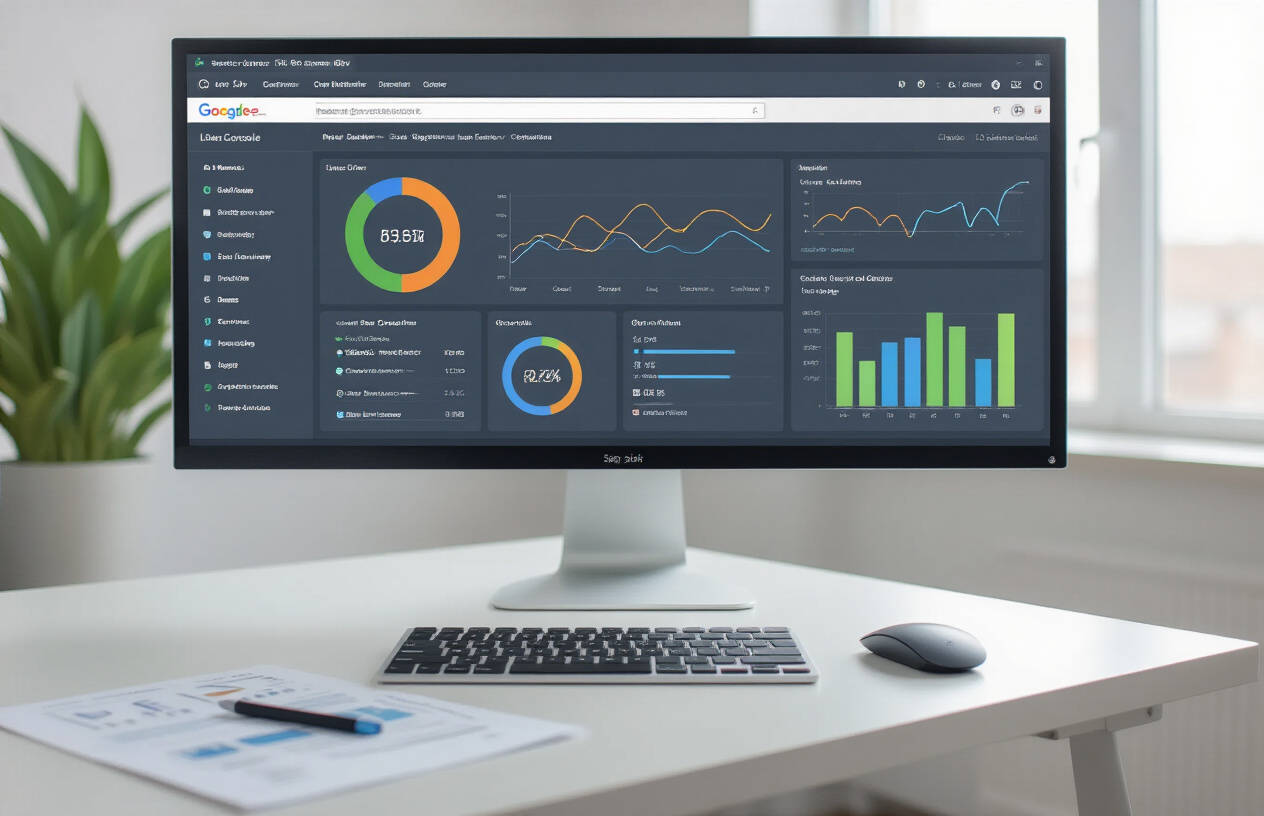
Google Search Console crawl reports provide essential insights into how Google’s search crawler interacts with your website. These reports show you exactly what happens when Google’s bots visit your site, which pages they can access, and where they encounter problems. Think of crawl reports as a detailed health checkup for your website from Google’s perspective.
When Google crawls your site, it’s essentially reading and analyzing every page to understand your content and decide what deserves to be included in search results. Your website’s crawl health directly impacts your search visibility. Pages that can’t be properly crawled won’t get indexed, which means they won’t appear in search results no matter how great your content is.
Crawl reports help you identify technical barriers that prevent Google from accessing your pages effectively. These barriers might include server errors, broken links, redirect issues, or blocked resources. By monitoring these reports regularly, you can catch problems before they seriously damage your search performance.
The data in these reports also reveals patterns about how Google interacts with your site. You can see which pages Google visits most frequently, understand your crawl budget allocation, and identify pages that Google finds but chooses not to index. This information becomes invaluable when planning technical SEO improvements and content strategies.
Key Components of Search Console Coverage Reports
The Coverage report in Google Search Console breaks down your website’s pages into four distinct categories that show their current status in Google’s index. Understanding each category helps you prioritize which issues need immediate attention.
Valid pages represent your success stories – these are pages that Google successfully crawled, indexed, and made available in search results. The report shows both “Valid with warnings” and “Valid” pages. While valid pages are performing well, those with warnings might have minor issues that don’t prevent indexing but could affect performance.
Error pages are your biggest concern. These pages have significant problems that prevent Google from indexing them. Common errors include 404 not found errors, server errors (5xx), redirect errors, and blocked resources. Each error type requires different troubleshooting approaches.
Valid with warnings indicates pages that Google indexed despite encountering minor issues. These might include pages indexed without being submitted in your sitemap or pages with soft 404 errors. While not critical, addressing these warnings can improve your overall site health.
Excluded pages show content that Google found but chose not to index. This category includes pages blocked by robots.txt, duplicate content, pages with noindex tags, and crawled but not indexed pages. Some exclusions are intentional (like admin pages), while others might indicate problems with your content strategy.
| Status Category | Description | Action Required |
|---|---|---|
| Valid | Successfully indexed pages | Monitor regularly |
| Valid with warnings | Indexed with minor issues | Review and optimize |
| Error | Cannot be indexed due to problems | Fix immediately |
| Excluded | Found but not indexed | Evaluate necessity |
Difference Between Crawl Errors and Indexing Issues
Many website owners confuse crawl errors with indexing issues, but they’re distinct problems that require different solutions. Understanding this difference helps you diagnose problems more accurately and apply the right fixes.
Crawl errors occur when Google’s bot physically cannot access or read your pages. These are technical problems that prevent the crawler from reaching your content. Examples include DNS errors, server timeouts, robots.txt blocking, and 4xx or 5xx HTTP status codes. When crawl errors occur, Google can’t even begin to evaluate your content for indexing.
Indexing issues happen after Google successfully crawls your pages but decides not to include them in search results. The crawler reached your content and analyzed it, but determined it shouldn’t be indexed. Common reasons include duplicate content, thin content, pages marked with noindex tags, or content that doesn’t meet Google’s quality standards.
The google search console url inspection tool helps distinguish between these issues. When you inspect a URL, it shows whether Google can access the page (crawl status) and whether it’s included in the index (indexing status). A page might be “crawlable” but “not indexed” due to content issues rather than technical problems.
Fixing crawl errors typically involves addressing technical infrastructure – fixing server issues, updating robots.txt files, or resolving redirect chains. Solving indexing issues often requires content improvements, removing duplicate content, or adjusting your site’s information architecture.
The crawl statistics in google search console help you understand patterns in both types of issues. If you see declining crawl rates alongside indexing problems, you might have technical issues. If crawl rates remain stable but indexed pages decrease, you’re likely dealing with content quality concerns.
Accessing and Navigating Your Crawl Data

Setting Up Google Search Console for Your Website
Before diving into Google Search Console crawl reports, you need to get your property set up correctly. Head over to search.google.com/search-console and sign in with your Google account. Click “Add Property” and choose between Domain property (covers all subdomains and protocols) or URL prefix (specific protocol and subdomain only). Most website owners go with the URL prefix option since it’s simpler to verify.
The verification process is straightforward – you can upload an HTML file to your root directory, add a DNS record, use your Google Analytics tracking code, or insert a meta tag in your site’s head section. The HTML file method works best for most people. Once verified, Google starts collecting data, though it takes 24-48 hours before you see meaningful crawl information.
Your property settings matter too. Make sure you’ve submitted your XML sitemap through the Sitemaps section – this helps Google discover your pages more efficiently. The sitemap acts like a roadmap for Google’s crawlers, showing them what content exists on your site.
Locating Coverage Reports in Your Dashboard
The Coverage report lives under the “Index” section in your Search Console sidebar. This report shows you exactly what’s happening when Google tries to crawl and index your pages. Think of it as your website’s health monitor – it tells you which pages Google can successfully process and which ones are having problems.
When you click on Coverage, you’ll see a graph showing your indexing status over time, plus a detailed breakdown of issues. The graph gives you a quick visual of whether things are improving or getting worse. Below that, you’ll find specific error types with the number of affected pages.
The URL Inspection tool complements the Coverage report perfectly. You can find it right at the top of your Search Console dashboard. Just paste any URL from your site to get real-time crawl and indexing information for that specific page. This tool is incredibly handy when you’re troubleshooting individual pages or checking if your fixes worked.
Understanding the Four Status Categories
Google organizes your pages into four distinct buckets, and understanding each one helps you prioritize your fixes:
Valid pages are your success stories – Google found them, crawled them successfully, and added them to the search index. These pages can show up in search results. You want as many of your important pages in this category as possible.
Valid with warnings means Google indexed your pages but spotted some issues that might affect their performance. Common warnings include missing meta descriptions or pages blocked by robots.txt but still indexed through external links. These pages still appear in search results but might not perform as well.
Excluded pages didn’t make it into Google’s index, but that’s not necessarily bad. Some exclusions are intentional – like thank you pages, admin sections, or duplicate content that you’ve marked with canonical tags. Google shows you why each page was excluded, helping you determine if action is needed.
Error pages represent real problems that need your attention. Google couldn’t crawl these pages due to technical issues like 404 errors, server problems, or redirect chains. These errors prevent important content from being indexed and can hurt your search visibility.
Interpreting Crawl Statistics and Trends
The Crawl Stats report gives you insight into how Googlebot interacts with your website. You’ll find this under Settings in your Search Console account. This data helps you understand your crawl budget and identify potential technical issues.
Pay attention to the “Crawl requests per day” metric – this shows how often Google visits your site. A sudden drop might indicate technical problems or that Google thinks your content isn’t updating frequently. Conversely, a spike could mean Google discovered new content or is re-crawling after you fixed issues.
The “Kilobytes downloaded per day” reveals how much data Googlebot pulls from your site. Large increases might suggest you’re serving oversized pages or have crawl efficiency problems. The “Average response time” metric is crucial too – slow pages frustrate both users and crawlers.
Look for patterns in the data. Regular crawl activity suggests a healthy site, while erratic patterns often point to underlying issues. The “Crawl request breakdown by response code” section shows you the HTTP status codes Google encounters. You want mostly 200 (success) codes with minimal 4xx or 5xx errors.
The Host Status section reveals if Google encountered any availability issues. Frequent server errors or DNS problems can seriously impact your crawl budget and indexing performance. Google reduces crawling when sites are unreliable, so maintaining good uptime is essential for search visibility.
Identifying Common Crawl Errors and Their Causes
Server Error Issues and HTTP Status Codes
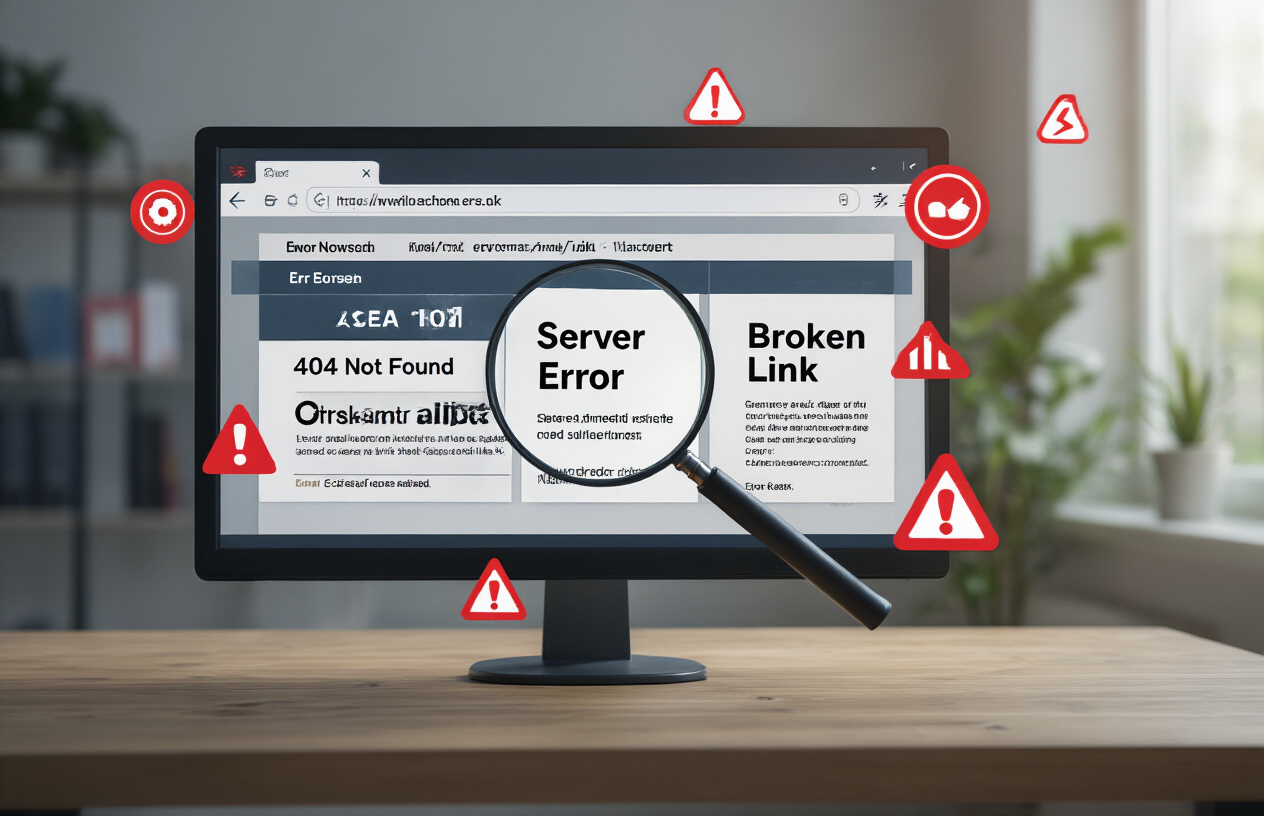
Server errors represent the most critical crawl issues that can completely block Google from accessing your website. When Google Search Console crawl reports show 5xx status codes, your server is essentially telling crawlers that something’s broken on your end. The most common culprits include 500 Internal Server Errors, 502 Bad Gateway responses, and 503 Service Unavailable messages.
These errors often stem from overloaded servers, misconfigured hosting settings, or faulty plugins that crash during crawl requests. Database connection failures can trigger 500 errors when Google tries to access dynamic pages. CDN misconfigurations frequently cause 502 errors, while scheduled maintenance or resource limits lead to 503 responses.
Your crawl statistics in Google search console will show dramatic drops in successfully crawled pages when server errors spike. Monitor response time patterns because slow servers often precede complete failures. Check your hosting provider’s error logs alongside Search Console data to identify root causes quickly.
Redirect Problems That Block Crawlers
Redirect chains and loops create maze-like paths that exhaust Google search console crawl budget without reaching actual content. When you stack multiple redirects (301 → 302 → 301), crawlers may abandon the journey before reaching the final destination. Google typically follows up to five redirect hops, but each additional step wastes precious crawl resources.
Redirect loops trap crawlers in endless circles, causing them to hit crawl limits without indexing any pages. These often occur when page A redirects to page B, which redirects back to page A. Mixed redirect types (301s and 302s in the same chain) confuse crawlers about your true intentions for permanent versus temporary moves.
Google Search Console URL inspection tool reveals redirect paths for individual pages, showing exactly where crawlers get stuck. Broken redirects returning 404s waste significant crawl budget, especially when they affect important pages that receive frequent crawler visits.
Blocked Resources and Robots.txt Conflicts
Robots.txt files wielding too much power can accidentally block critical resources that Google needs for proper page rendering. When your robots.txt disallows CSS or JavaScript files, crawlers see broken page layouts and may struggle to understand your content structure. This creates Google Search Console indexing issues that are entirely self-inflicted.
Wildcards in robots.txt often block more than intended. A rule like “Disallow: /admin*” might block “/administrator-guide/” pages that should be crawlable. Regular expression misunderstandings lead to overly broad restrictions that impact legitimate content pages.
Google search console crawled but not indexed status frequently results from robots.txt blocks on supporting files. Images blocked by robots.txt won’t appear in Google Images, even if the containing pages index normally. JavaScript files blocked from crawling can prevent Google from understanding single-page applications or dynamic content.
Test your robots.txt changes using the Google Search Console robots.txt tester before implementing them. Small syntax errors can accidentally block your entire website from being crawled.
Soft 404 Errors and Missing Content Pages
Soft 404s represent the sneakiest crawl problems because they return successful 200 status codes while serving error content. These pages tell crawlers “everything’s fine” while actually displaying “page not found” messages or thin content that provides no value to users. Google search console crawl reports let you monitor these deceptive errors that often slip past basic monitoring.
Empty category pages, search result pages with no results, and expired product pages commonly trigger soft 404 classifications. Google’s algorithms detect when pages claim success but deliver failure experiences. E-commerce sites frequently face this issue when products go out of stock but pages remain live with minimal content.
Template-generated pages with boilerplate content and no unique value often get flagged as soft 404s. User-generated content platforms see this when member profiles or forum posts get deleted but leave behind shell pages with generic messaging.
How to fix crawl errors in Google Search Console for soft 404s requires either adding substantial content to make pages valuable or implementing proper 404 status codes for truly missing content. Monitor your crawl report Google search console data regularly to catch these issues before they impact large numbers of pages.
Monitoring Your Website’s Crawl Health

Setting Up Automated Email Alerts for Critical Issues
Google Search Console provides built-in email notification settings that you should configure immediately after setting up your property. Navigate to Settings > Users and permissions, then click on your email address to enable notifications for critical crawl issues, security problems, and manual actions.
Beyond the basic notifications, create custom monitoring for specific crawl patterns. Set up alerts when your google search console crawl budget drops significantly or when google search console crawled – currently not indexed pages spike above normal levels. Tools like Google Analytics Intelligence or third-party monitoring services can track these metrics automatically.
Pay special attention to google search console indexing issues that require immediate action. Configure alerts for sudden increases in 404 errors, server errors, or when pages get google search console excluded by noindex tag unexpectedly. These notifications help you catch problems before they impact your search visibility significantly.
Consider setting up multiple alert thresholds – minor issues for weekly review and critical problems that need immediate attention. This tiered approach prevents alert fatigue while ensuring you never miss important google search console crawl stats report changes.
Creating Weekly Crawl Health Check Routines
Establish a consistent weekly routine to review your crawl search console data systematically. Start by examining the Coverage report for new errors or warnings, particularly focusing on pages marked as google search console crawled but not indexed. Document any patterns or recurring issues that might indicate broader site problems.
Check your google search console crawl statistics weekly to identify trends in crawl frequency and discover any unusual drops in Googlebot activity. Compare current crawl rates with historical data to spot potential issues early. Pay attention to crawl delay patterns and file type distribution to ensure Google is accessing your most important content efficiently.
Review your google search console url inspection tool queries from the previous week. This helps identify which pages your team has been troubleshooting and their current status. Create a simple spreadsheet tracking problematic URLs, their issues, and resolution status to maintain accountability and measure progress.
Weekly sitemap analysis is crucial for maintaining healthy crawl patterns. Verify that your submitted sitemaps don’t contain URLs returning errors and that new content gets included promptly. Cross-reference sitemap submission dates with actual crawl dates to ensure Google is discovering your content as expected.
Tracking Crawl Budget Usage and Optimization
Understanding your google search console crawl budget requires analyzing multiple data points within Search Console. Monitor the Crawl Stats report to track daily crawl frequency, downloaded kilobytes, and average response time. High response times or frequent timeouts indicate server performance issues that waste crawl budget.
Create a monthly crawl budget efficiency report comparing pages crawled versus pages actually indexed. High ratios of crawled pages to indexed pages suggest you’re wasting crawl budget on low-value content. Use the google search console url inspection data to identify which page types Google crawls most frequently and adjust your internal linking accordingly.
Track crawl budget allocation across different sections of your website. E-commerce sites should monitor whether product pages receive adequate crawl attention compared to category pages. News sites need to ensure fresh content gets crawled quickly while older articles don’t consume excessive budget.
| Crawl Budget Metric | Optimal Range | Red Flag Threshold |
|---|---|---|
| Average Response Time | Under 200ms | Over 500ms |
| Crawl Errors Rate | Under 5% | Over 15% |
| Pages Crawled vs Indexed | 70-90% | Under 50% |
| Daily Crawl Frequency | Steady growth | 50% drop week-over-week |
Monitor how google search console force crawl requests affect your overall budget. While the google search console request crawl feature helps with urgent updates, overusing it can signal content quality issues to Google. Track which pages you request for recrawling most often and address underlying problems causing the need for manual intervention.
Use crawl budget insights to optimize your robots.txt file and internal linking structure. Block unnecessary crawling of administrative pages, search results, or duplicate content that doesn’t add value. Focus your crawl budget on pages that drive traffic and conversions by improving their discoverability through strategic internal linking.
Step-by-Step Solutions for Fixing Crawl Errors

Resolving Server Errors and Technical Glitches
Server errors are among the most critical crawl issues that can prevent Google from indexing your pages. When Google encounters 5xx server errors, it can’t access your content, leading to reduced visibility in search results.
Start by checking your server logs to identify patterns in error occurrences. Common culprits include:
- Database connection timeouts: Optimize your database queries and consider implementing caching
- Memory exhaustion: Increase server memory limits or optimize resource-heavy scripts
- Plugin conflicts: Deactivate plugins one by one to identify problematic extensions
- CDN issues: Verify your content delivery network configuration
For WordPress sites experiencing frequent 500 errors, check your .htaccess file for syntax errors and ensure your PHP version is compatible with your theme and plugins. Contact your hosting provider if server-level issues persist beyond your control.
Use google search console url inspection tool to test specific pages after implementing fixes. Submit a google search console request crawl for critical pages once errors are resolved.
Fixing Broken Internal and External Links
Broken links create dead ends that frustrate both users and search engine crawlers. These 404 errors signal poor site maintenance and can impact your crawl budget efficiency.
Internal Link Fixes:
- Use tools like Screaming Frog or Ahrefs to identify all broken internal links
- Update outdated URLs to point to current pages
- Implement 301 redirects for moved content
- Remove links to deleted pages or replace with relevant alternatives
External Link Management:
While you can’t control external sites, you can minimize the impact of broken outbound links:
- Regularly audit your external links using link checking tools
- Replace broken external links with working alternatives
- Use the rel=”nofollow” attribute for questionable external links
Create a systematic approach by checking your most important pages monthly. Focus on navigation menus, footer links, and high-traffic content areas first. When you discover broken links through crawl search console reports, prioritize fixing those on your most valuable pages.
Correcting Redirect Chains and Loops
Redirect chains waste crawl budget and slow down page loading. Google follows only a limited number of redirects before abandoning the crawl attempt.
Identifying Redirect Issues:
Use tools like Redirect Mapper or check individual URLs with browser developer tools. Look for patterns like:
- Page A → Page B → Page C → Final Page (chain)
- Page A → Page B → Page A (loop)
Solutions:
- Simplify chains: Make all redirects point directly to the final destination
- Fix redirect loops: Identify the circular reference and break the cycle
- Use 301 redirects: Ensure permanent redirects pass link equity effectively
- Update internal links: Point directly to final URLs instead of relying on redirects
For large sites, create a redirect audit spreadsheet tracking old URLs, redirect destinations, and status codes. This helps prevent future redirect chains when updating content or restructuring your site.
Addressing Blocked Resources Issues
When essential resources like CSS, JavaScript, or images are blocked from crawling, Google can’t properly render and understand your pages. This affects how your content appears in search results and can impact rankings.
Common blocking issues include:
- Robots.txt files blocking critical resources
- Server-level restrictions on resource files
- Plugin or security software preventing access
- Incorrect file permissions on resource directories
Resolution steps:
- Check your robots.txt file for overly restrictive rules
- Test resource URLs directly in your browser
- Use google search console url inspection to see how Google renders your pages
- Allow Googlebot access to CSS and JavaScript files
- Verify image directories aren’t blocked
Pay special attention to mobile rendering, as blocked resources often affect mobile-first indexing more severely than desktop crawling.
Handling Duplicate Content and Canonical Problems
Duplicate content confuses search engines about which version to index and rank. Canonical tags help consolidate ranking signals to your preferred URLs.
Common duplicate content scenarios:
- HTTP vs HTTPS versions
- WWW vs non-WWW domains
- URL parameters creating multiple versions
- Printer-friendly pages
- Category and tag pages with similar content
Canonical tag implementation:
<link rel=”canonical” href=”https://example.com/preferred-url/”>
Best practices:
- Use absolute URLs in canonical tags
- Ensure canonical URLs return 200 status codes
- Don’t canonical to redirecting URLs
- Self-reference canonical tags on unique pages
- Use consistent canonical patterns across your site
For e-commerce sites, implement dynamic canonical tags for product variations and filtered category pages. Monitor google search console crawled – currently not indexed reports to identify pages affected by canonicalization issues.
Check your google search console indexing reports regularly to ensure Google recognizes your canonical preferences. When you find indexing problems related to duplicates, use the google search console reindex feature after implementing proper canonical tags.
Optimizing Your Site for Better Indexing

Improving Site Speed and Core Web Vitals
Site speed directly impacts how Google crawls and indexes your pages. When your website loads slowly, Google Search Console crawl reports will show reduced crawl activity since Google allocates less crawl budget to sluggish sites. Focus on these key areas to boost your crawl performance:
Page Loading Speed Optimization:
- Compress images using WebP format and implement lazy loading
- Minimize CSS and JavaScript files
- Enable browser caching with proper cache headers
- Use a Content Delivery Network (CDN) to serve assets faster
Core Web Vitals Enhancement:
- Largest Contentful Paint (LCP): Target under 2.5 seconds by optimizing your largest page elements
- First Input Delay (FID): Keep it under 100ms by reducing JavaScript execution time
- Cumulative Layout Shift (CLS): Maintain below 0.1 by setting dimensions for images and ads
Monitor these metrics through Google Search Console URL inspection tool and PageSpeed Insights. When Core Web Vitals improve, you’ll notice increased crawl frequency in your crawl statistics.
Creating Clean URL Structures for Crawlers
Clean URLs help Google’s crawler understand your site structure and content hierarchy. Poorly structured URLs create confusion and can trigger Google Search Console indexing issues.
Best Practices for Crawler-Friendly URLs:
- Use descriptive keywords in URLs instead of random parameters
- Keep URLs short and readable (under 60 characters when possible)
- Use hyphens to separate words, not underscores
- Implement consistent URL patterns across your site
- Avoid excessive subdirectories (limit to 3-4 levels deep)
Common URL Issues to Fix:
- Dynamic parameters that create duplicate content
- Session IDs that generate multiple URLs for identical content
- Non-canonical URL variations (www vs non-www, HTTP vs HTTPS)
- Trailing slash inconsistencies
Use Google Search Console crawl request features to test how Google interprets your new URL structure. Clean URLs reduce the chances of pages being crawled but not indexed and improve your overall crawl efficiency.
Optimizing Internal Linking Architecture
Smart internal linking guides Google’s crawler through your most important content and distributes page authority effectively. Your internal link structure directly affects which pages get crawled and how often.
Strategic Internal Linking Approach:
- Create topic clusters linking related content together
- Use descriptive anchor text that includes relevant keywords
- Link from high-authority pages to important but less-visited content
- Implement breadcrumb navigation for clear site hierarchy
- Ensure every page is reachable within 3-4 clicks from your homepage
Internal Link Audit Process:
- Identify orphaned pages (pages with no internal links)
- Find pages with excessive outbound internal links (over 100)
- Check for broken internal links that waste crawl budget
- Review anchor text distribution for natural keyword usage
Link Equity Distribution:
- Link to your most important pages from multiple high-authority internal pages
- Use your main navigation to highlight priority content
- Create hub pages that link to related subtopic content
- Balance links between commercial and informational pages
Regular internal link audits through Google Search Console crawl reports help identify pages that need more internal link support. When you improve internal linking, expect to see better crawl coverage and fewer Google Search Console indexing issues in your reports.
Advanced Strategies for Crawl Budget Optimization

Prioritizing Important Pages for Crawling
Your most valuable pages deserve the most attention from Google’s crawlers. Start by identifying which pages drive the most traffic, conversions, and revenue for your business. These typically include your homepage, key product pages, category pages, and high-performing blog posts. Use Google Search Console crawl stats to see which pages Google already visits frequently, then compare this with your internal analytics to spot gaps.
Create a clear hierarchy by linking to your most important pages from high-authority areas of your site, especially your homepage and main navigation. Internal linking passes crawl priority signals, so strategic placement of links can guide Google’s crawlers toward your priority content. Keep your most crucial pages within three clicks of your homepage – this ensures they receive regular crawl attention.
Consider implementing structured data markup on priority pages to make them more attractive to crawlers. Pages with rich snippets often get crawled more frequently because they provide clearer context about the content’s purpose and relevance.
Using Robots.txt Effectively Without Over-Blocking
The robots.txt file acts as your website’s gatekeeper, but many site owners accidentally block important content while trying to optimize their crawl budget. Instead of blanket blocking entire directories, be surgical in your approach. Block low-value pages like admin sections, duplicate content areas, and infinite scroll pages that waste crawl resources.
Common mistakes include blocking CSS and JavaScript files, which can hurt how Google renders your pages. Allow access to critical site resources while blocking only true waste – think search result pages with URL parameters, printer-friendly versions, and session-based URLs that create endless variations of the same content.
Test your robots.txt changes using Google Search Console’s robots.txt tester before implementing them live. This prevents accidental blocking of important pages that could hurt your search rankings. Remember that robots.txt is a public file, so avoid using it to hide sensitive information.
Managing Large Websites with Smart Crawl Directives
Large websites face unique challenges when it comes to crawl budget optimization. With thousands or millions of pages, you need smart strategies to ensure Google discovers and crawls your most valuable content efficiently. Start by implementing crawl rate limiting in Google Search Console to prevent server overload during peak crawling periods.
Use canonical tags strategically to consolidate crawl signals toward your preferred page versions. This is especially important for e-commerce sites with product variations, filter pages, and sorting options that create duplicate content. Implement hreflang tags correctly for international sites to help Google understand which pages to crawl for different regions and languages.
Set up monitoring alerts for crawl anomalies using Google Search Console crawl reports. Large sites often experience sudden spikes in crawl errors or dramatic changes in crawl volume that require immediate attention. Create automated reports that flag when crawl rates drop significantly or when new error patterns emerge.
Consider using the Google Search Console Index API for time-sensitive content like news articles or product launches. This allows you to notify Google immediately about important new pages instead of waiting for natural discovery through crawling.
Leveraging Sitemaps for Better Discovery
XML sitemaps serve as your direct communication channel with Google about which pages exist on your site and how important they are. Create multiple targeted sitemaps instead of one massive file – separate sitemaps for different content types like products, blog posts, and category pages make it easier to track indexing performance for each section.
Use priority values and change frequency indicators thoughtfully in your sitemaps. While Google doesn’t strictly follow these signals, they provide helpful hints about which pages you consider most important. Set realistic change frequencies – marking every page as “daily” when they rarely update can hurt your credibility with crawlers.
Include last modification dates for pages in your sitemaps to help Google identify which content has been updated recently. This encourages re-crawling of pages with fresh content while reducing unnecessary crawls of static pages.
Submit image and video sitemaps:
Submit image and video sitemaps for media-rich sites to improve discovery of your visual content. These specialized sitemaps help Google understand the context and relevance of your multimedia assets, potentially increasing their visibility in image and video search results.
Monitor your sitemap performance through Google Search Console to identify pages that aren’t being indexed despite being included in your sitemap. This data helps you spot technical issues or quality problems that prevent proper indexing.

Google Search Console’s crawl reports give you a direct window into how search engines see and interact with your website. By regularly checking your crawl data, spotting common errors, and fixing them quickly, you’re setting your site up for better search visibility. The monitoring tools and error-fixing strategies we covered will help you catch problems before they hurt your rankings.
Start by diving into your Search Console today and running through your crawl reports. Look for those red flags like 404 errors, server issues, or blocked resources, then work through the fixes systematically. Remember, a well-crawled site is a well-indexed site, and better indexing means more opportunities for your content to show up in search results. Your website’s health depends on staying on top of these crawl issues, so make it part of your regular SEO routine.
FAQs
What is Google Search Console and why should I use it?
Google Search Console is a free tool from Google that helps website owners monitor how their site appears in search results. It shows you which pages Google can find and index, identifies technical problems, and provides insights about your site’s search performance.
Where can I find crawl reports in Google Search Console?
You can find crawl reports in the “Coverage” section under “Index” in the left sidebar of Google Search Console. This report shows you which pages Google has successfully indexed and which ones have errors or warnings.
What are the most common crawl errors I should watch for?
The most common crawl errors include 404 (page not found) errors, server errors (5xx), redirect errors, blocked pages, and pages with no content. These errors prevent Google from properly accessing and indexing your pages.
How often should I check my crawl reports?
Check your crawl reports at least once a week, or more frequently if you regularly add new content or make site changes. Set up email alerts in Google Search Console to get notified when new issues appear.
What does it mean when a page shows “Crawled but not indexed”?
This means Google found your page and looked at it, but decided not to include it in search results. Common reasons include duplicate content, low-quality content, or pages that don’t add value to users.
How do I fix 404 errors shown in the crawl report?
First, check if the page should exist. If yes, restore the page or fix the URL. If the page was intentionally removed, either redirect it to a relevant page or let Google know the 404 is correct. You can validate the fix in Google Search Console once resolved.
What should I do about pages blocked by robots.txt?
Review your robots.txt file to see if important pages are accidentally blocked. If pages should be crawled, update your robots.txt file. If they should stay blocked, ensure you’re not accidentally blocking pages you want in search results.
How long does it take for Google to re-crawl fixed pages?
After fixing crawl errors, it typically takes a few days to several weeks for Google to re-crawl your pages. You can speed up the process by using the “Request Indexing” feature in Google Search Console for important pages.
What’s the difference between crawling and indexing?
Crawling is when Google visits and reads your page content. Indexing is when Google stores that page in its database and makes it available to show in search results. A page can be crawled but not indexed if Google decides it’s not suitable for search results.
How can I improve my site’s crawl efficiency?
Improve your site speed, fix broken links, create a clear site structure, submit an updated sitemap, and ensure your important pages are easily accessible. Also, regularly monitor and fix crawl errors as they appear in your reports.