
WPML Multilingual Plugin Review – Features, Pricing, and Setup Guide for WordPress Sites
Creating a multilingual website has become essential for businesses looking to reach global audiences. The WPML multilingual plugin stands out as one of the most popular solutions for WordPress users who want to translate their content into multiple languages. This comprehensive guide will walk you through everything you need to know about the WPML multilingual CMS and how to make the most of its features.
WPML Multilingual Premium Plugin WordPress
Get the Premium WPML Multilingual Plugin

What is WPML?
WPML (WordPress Multilingual Plugin) is a premium plugin that transforms your WordPress website into a multilingual platform. The WPML Sitepress multilingual CMS allows you to create, manage, and display content in multiple languages without creating separate websites for each language.
Since its launch, WPML has helped over 1 million websites become multilingual. The plugin works by creating language versions of your content while maintaining a single WordPress installation. This approach makes it easier to manage multiple languages from one dashboard.
Core Benefits of WPML WordPress:
- Single Installation: Manage all languages from one WordPress dashboard
- SEO Friendly: Each language gets its own URL structure
- Professional Translation: Access to human translators through WPML’s translation service
- Plugin Compatibility: Works with most WordPress themes and plugins
- Complete Translation: Translate posts, pages, custom fields, menus, and widgets
Key Features of WPML Multilingual CMS
The WPML multilingual plugin offers a comprehensive set of features that make website translation straightforward and professional.
Translation Management System
WPML’s translation management system is one of its strongest features. The WPML translation management interface allows you to:
- Assign translation jobs to different translators
- Track translation progress
- Set translation priorities
- Review translations before publishing
- Manage translation workflows for large projects
Automatic Translation Integration
Recent updates to WPML include integration with WPML DeepL, providing automatic translation capabilities. This feature significantly speeds up the initial translation process, though human review is still recommended for important content.
Media Translation Support
The WPML media translation feature ensures that images, videos, and other media files can have language-specific versions. This includes:
- Translated image alt texts
- Language-specific media files
- Translated captions and descriptions
- Localized featured images
Advanced Custom Fields Support
For developers using Advanced Custom Fields, WPML Advanced Custom Fields multilingual support ensures that all custom field content can be translated seamlessly. This integration maintains the functionality of custom fields while adding multilingual capabilities.
WPML Multilingual CMS Price and Licensing
Understanding the WPML multilingual CMS price structure is important for budget planning. WPML offers three main licensing tiers:
For Blog ($39/year)
- Perfect for personal blogs
- Includes WPML Multilingual CMS
- String Translation
- Translation Management
- Covers 1 website
Multilingual CMS ($99/year)
- Ideal for business websites
- All Multilingual Blog features
- WPML multilingual blog functionality
- Advanced Custom Fields support
- Covers up to 3 websites
Multilingual Agency ($199/year)
- Best for agencies and developers
- All CMS features
- WPML WooCommerce multilingual & multicurrency
- WPML BuddyPress multilingual
- Unlimited websites
The WPML license includes one year of updates and support. After the first year, you can continue using the plugin, but you’ll need to renew for updates and support.
Setting Up WPML: A Step-by-Step Tutorial
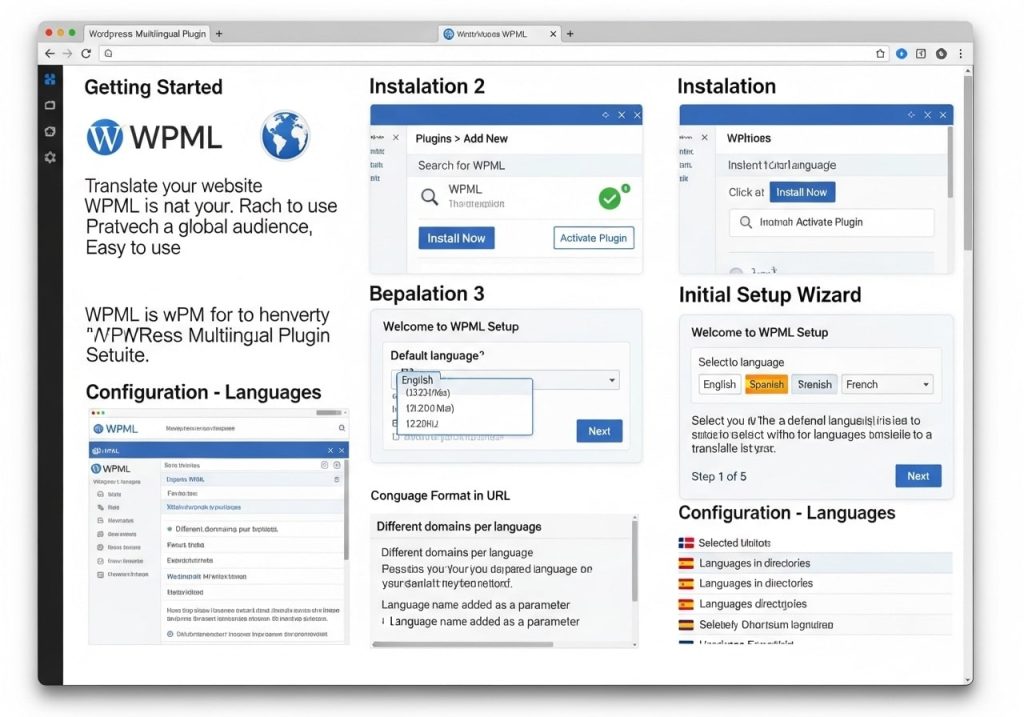
This WPML tutorial will guide you through the initial setup process to get your multilingual website running.
Step 1: Installation and Activation
- Purchase and download WPML from the official website
- Upload the plugin files to your WordPress installation
- Activate the WPML multilingual plugin
- Register your site with your WPML account key
Step 2: Language Configuration
Navigate to WPML > Languages to configure your site’s languages:
- Select your default language
- Choose additional languages you want to add
- Set the language switcher options
- Configure URL format (subdirectories, subdomains, or parameters)
Step 3: Translation Preferences
In the WPML settings, configure how you want to handle translations:
- Choose between manual translation and automatic translation
- Set up translation management preferences
- Configure which content types should be translatable
- Set up translator roles and permissions
WPML Settings Configuration
Proper WPML settings configuration is crucial for optimal performance. Here are the key areas to focus on:
Language Settings
- Default Language: Choose your primary website language
- Language Order: Set the order in which languages appear in switchers
- Language Names: Decide whether to show language names in their native form or your default language
Translation Options
Configure how WPML handles different types of content:
- Posts and Pages: Set default translation behavior
- Custom Post Types: Enable translation for custom content
- Taxonomies: Choose which categories and tags to translate
- Menus: Enable menu translation capabilities
Performance Settings
Optimize WPML for better website performance:
- Enable language-specific caching
- Configure database optimization settings
- Set up proper permalink structures
- Enable browser language detection if desired
WPML Language Switcher Setup
The WPML language switcher is how visitors navigate between language versions of your site. WPML offers several switcher options:
Widget-Based Switcher
Add a language switcher widget to your sidebar or footer:
- Go to Appearance > Widgets
- Add the WPML Language Switcher widget
- Configure display options (flags, language names, dropdown)
- Position the widget in your desired location
Menu Integration
Integrate language switching directly into your navigation menu:
- Go to Appearance > Menus
- Enable WPML language switcher in menu options
- Add language links to your menu structure
- Customize the appearance through your theme
Shortcode Implementation
For more control, use WPML shortcodes:
[wpml_language_switcher type=”footer” flags=1 native=1]
This flexibility allows you to place language switchers exactly where you want them on your site.
WPML Integration with Popular Plugins
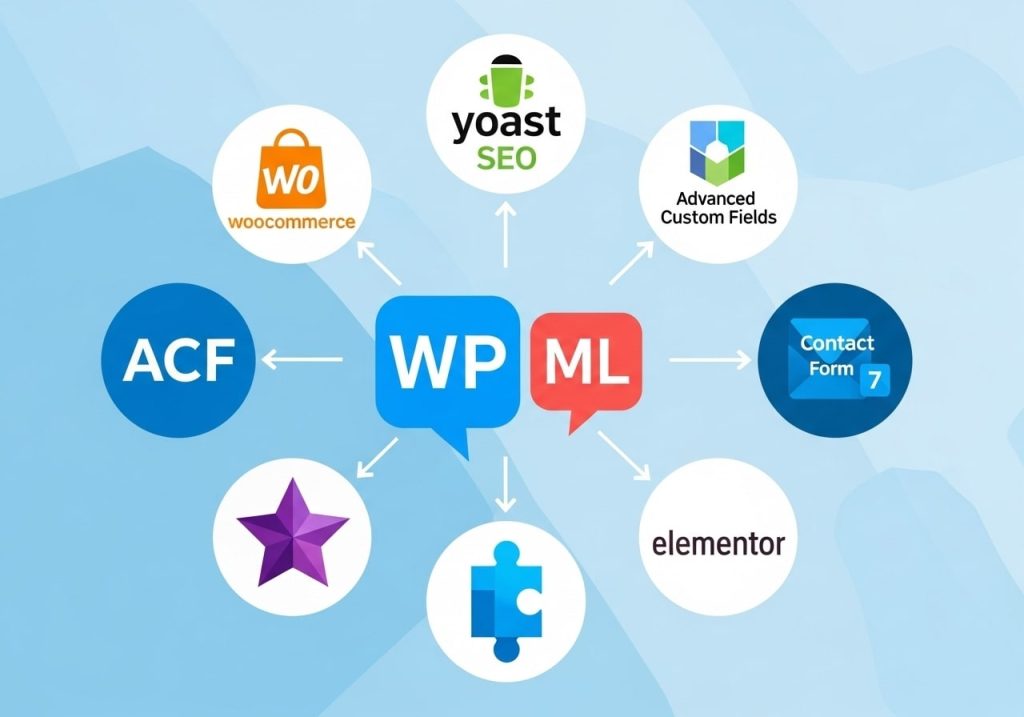
One of WPML’s strengths is its compatibility with popular WordPress plugins. Here are some key integrations:
WPML Elementor Integration
WPML Elementor integration allows you to translate pages built with the Elementor page builder:
- Translate Elementor widgets and content
- Maintain design consistency across languages
- Use Elementor’s template system with multiple languages
- Translate dynamic content and custom fields
WooCommerce Integration
The WPML WooCommerce multilingual & multicurrency addon enables complete e-commerce translation:
- Translate product descriptions, categories, and attributes
- Set up multiple currencies for different regions
- Translate checkout and account pages
- Manage multilingual product variations
Form Plugin Integration
Contact Form 7 Multilingual
- Translate form fields and labels
- Set up language-specific form submissions
- Translate confirmation messages
- Manage multilingual form notifications
Gravity Forms Multilingual
- Complete form translation capabilities
- Language-specific form logic
- Translated validation messages
- Multilingual form entries management
WPML vs Competitors
When choosing a multilingual solution, it’s important to compare options. Here’s how WPML stacks up against competitors:
WPML vs Polylang
WPML vs Polylang comparison:
Advantages:
- More comprehensive feature set
- Better support for complex sites
- Professional translation services
- Extensive plugin compatibility
Polylang Advantages:
- Free version available
- Lighter weight
- Simpler setup for basic needs
- Open source development
WPML vs TranslatePress
WPML vs TranslatePress comparison:
Advantages:
- More mature platform
- Better translation management
- Stronger plugin ecosystem
- Professional translation network
TranslatePress Advantages:
- Visual translation interface
- Front-end translation editing
- More intuitive for beginners
- Better free version
Common WPML Issues and Solutions
Even with proper setup, you might encounter some common issues. Here are solutions for frequent problems:
WPML Multilingual CMS Fatal Error
WPML multilingual CMS fatal error issues often stem from:
- Memory limit problems: Increase the PHP memory limit
- Plugin conflicts: Deactivate other plugins temporarily
- Theme compatibility: Switch to a default theme for testing
- Outdated versions: Update to the latest WPML multilingual CMS current version
Performance Issues
If WPML is slowing down your site:
- Enable proper caching for multilingual sites
- Optimize database queries
- Use CDN with multilingual support
- Configure server-level caching properly
Translation Sync Problems
When translations don’t sync properly:
- Check WPML translation management settings
- Verify content is set as translatable
- Clear WPML cache and regenerate
- Review translator permissions and roles
WPML SEO Best Practices
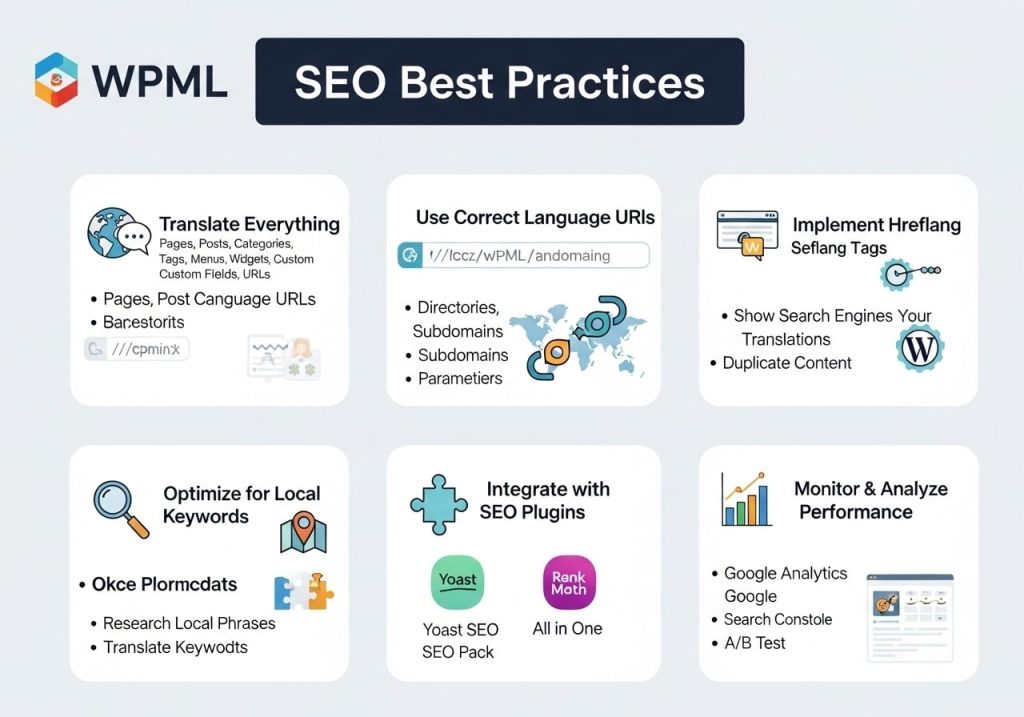
Implementing proper WPML SEO practices ensures your multilingual site performs well in search engines:
URL Structure Optimization
Configure WPML slugs properly:
- Use subdirectories for better SEO (example.com/fr/)
- Translate URL slugs for a better user experience
- Set up proper hreflang tags
- Configure canonical URLs correctly
Content Translation SEO
- Translate meta titles and descriptions
- Optimize the image alt text for each language
- Create language-specific sitemaps
- Implement proper internal linking structure
Technical SEO Considerations
- Set up proper redirects for language detection
- Configure server-side language handling
- Implement structured data for multilingual content
- Monitor search engine indexing for all languages
Advanced WPML Features
Translation Memory
WPML’s translation memory feature helps maintain consistency:
- Stores previously translated phrases
- Suggests translations for similar content
- Reduces translation time and costs
- Maintains brand voice consistency
Multilingual Tools Integration
WPML multilingual tools include:
- String translation for theme and plugin text
- WPML translation credits system
- Bulk translation management
- Translation analytics and reporting
Custom Development Integration
For developers, WPML provides:
- Extensive API for custom integrations
- Hooks and filters for customization
- Documentation for theme development
- Support for custom post types and fields
Security Considerations
WPML Multilingual CMS Exploit Prevention
Stay secure with these practices:
- Keep WPML updated to the latest version
- Regular security audits of a multilingual setup
- Proper user permissions for translators
- Secure translation workflow management
Best Security Practices
- Regular backups of multilingual content
- Monitor translation user activities
- Secure API keys and credentials
- Implement proper access controls
Future-Proofing Your Multilingual Site
Staying Updated
Keep your WPML multilingual CMS update schedule current:
- Enable automatic updates when possible
- Test updates on staging sites first
- Monitor WPML changelog for new features
- Plan for major version upgrades
Scalability Planning
Prepare for growth:
- Plan for additional languages
- Consider translation workflow scaling
- Prepare for increased content volume
- Monitor performance as the site grows
Conclusion
The WPML multilingual plugin remains one of the most comprehensive solutions for creating multilingual WordPress websites. With its robust feature set, extensive plugin compatibility, and professional translation services, WPML provides everything needed to reach global audiences effectively.
Whether you’re running a simple WPML multilingual blog or a complex e-commerce site with WooCommerce multilingual & multicurrency with WPML, this plugin offers the flexibility and power needed for success. The investment in the WPML multilingual CMS pays off through increased global reach and professional multilingual functionality.
Ready to make your WordPress site multilingual? Start with a WPML demo to see how it works with your current setup, then choose the license level that fits your needs. With proper setup and configuration, WPML will help you break down language barriers and connect with audiences worldwide.
Take Action: Visit the official WPML website today to download the plugin and start your multilingual journey. Your global audience is waiting to discover what you have to offer in their native language.